
Como criar um formulário do Facebook no Ad Manager
In this article we will discuss in detail about the steps to be taken to create a new Facebook lead form, used for the Lead Generation objective of Meta ads.
TABLE OF CONTENTS
- How to create new Facebook Form?
- How to use custom fields in Ad Manager?
- How to review, map and duplicate existing Facebook lead forms?Accessing Form Review & Mapping detailsDuplicating a Facebook FormField Mapping Prompt
- Accessing Form Review & Mapping details
- Duplicating a Facebook Form
- Field Mapping Prompt
How to create new Facebook Form?
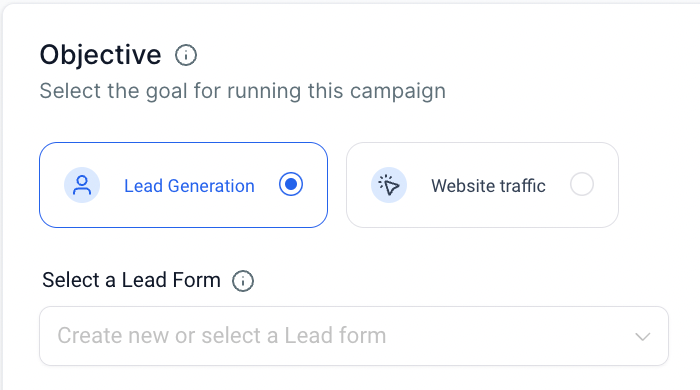
The steps to create a new Facebook lead form are as follows:
- Click on the dropdown of create new or select a Lead form
- Click on 'Create Facebook Form'
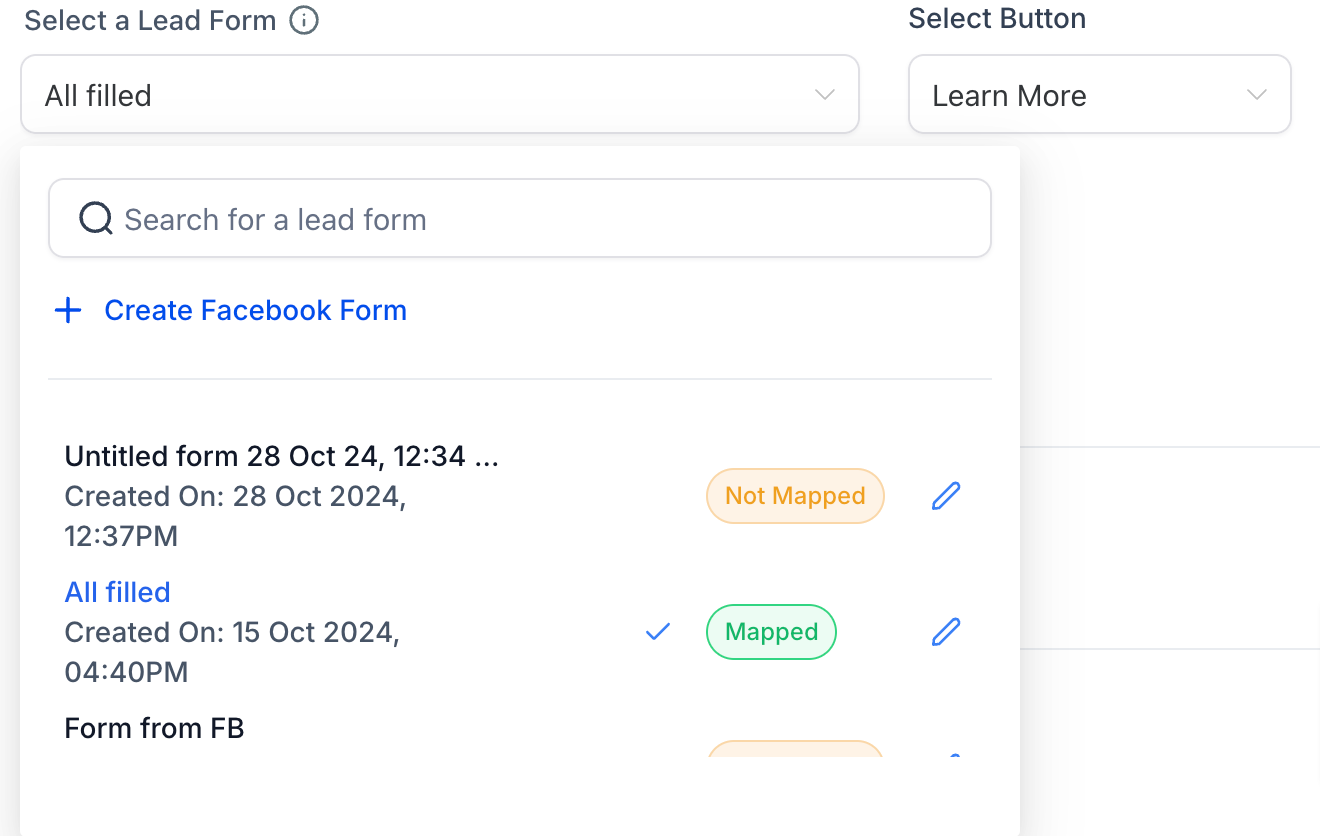
- Add thename of Facebook form

- Select the form type option off the two-More Volume and Higher Intent- Difference is that Higher Intent adds a review step to view the information for people to confirm.

- Next step isGreetingsto allow the people know why they should complete your form and any relevant details. There are option to add Headline (required field) and add the paragraph or list.

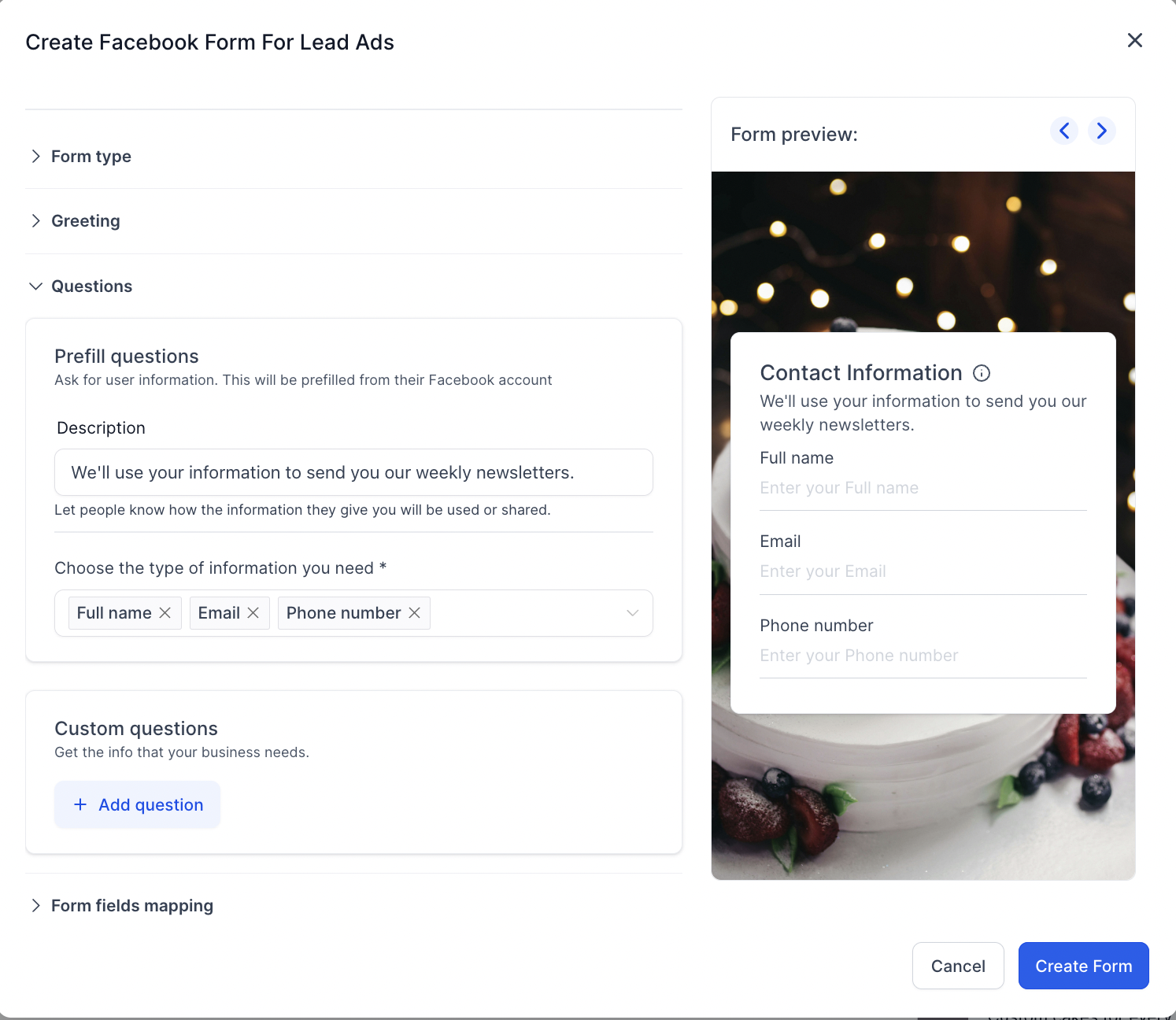
- Following step hasQuestions option- User can add the description-There are option to select the type of information you need to collect from people [ This will help you understand if the contact is good or not]- For custom question, there are option to create short description and multiple choice questions to share the information which is more relevant to your form.
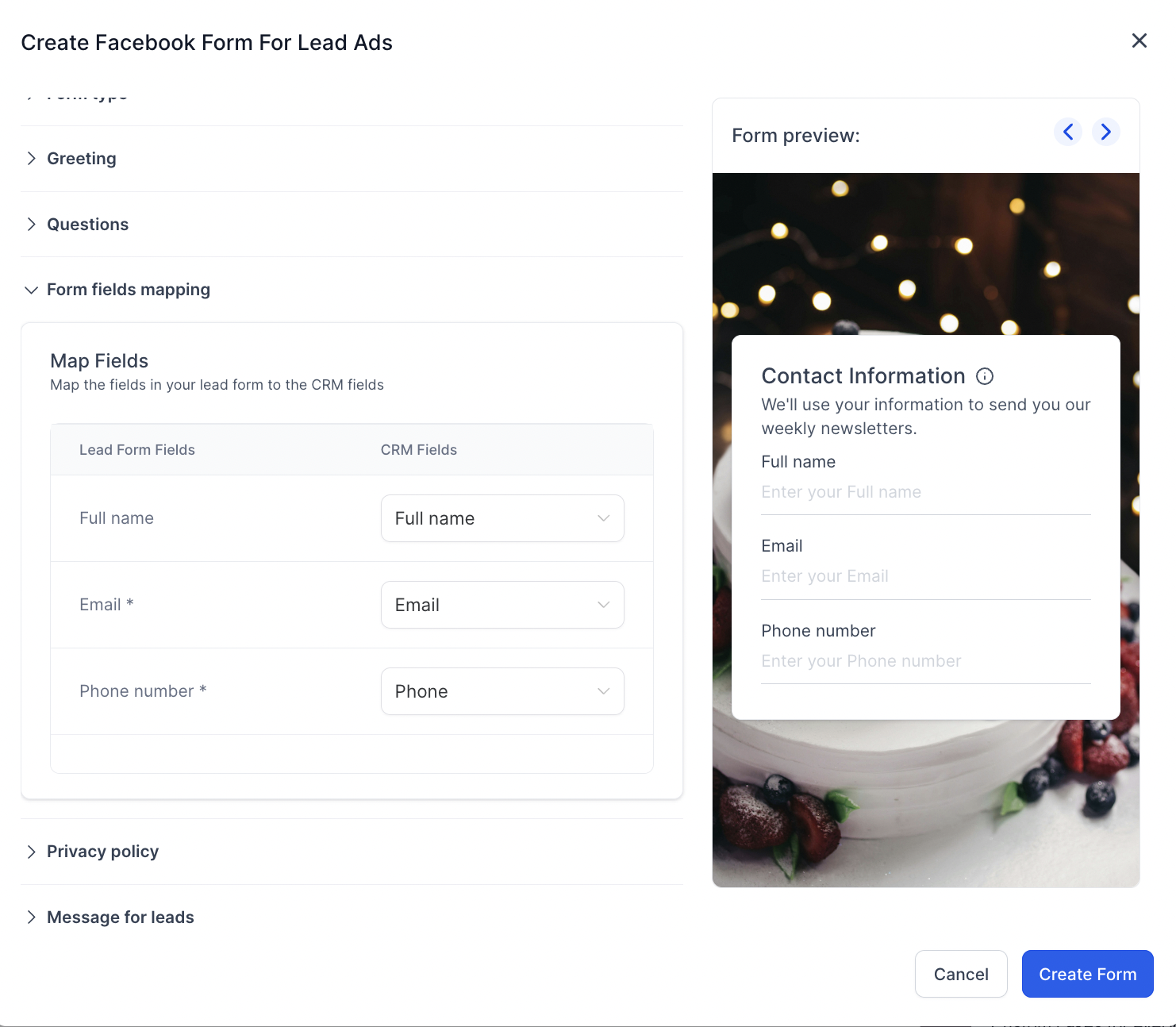
- AllowForm Field Mapping- this allows users to map the forms fields to contact fields in HighLevel. This allows in form submission to view each field answers and also it showcases in the contact as they are mapped in.
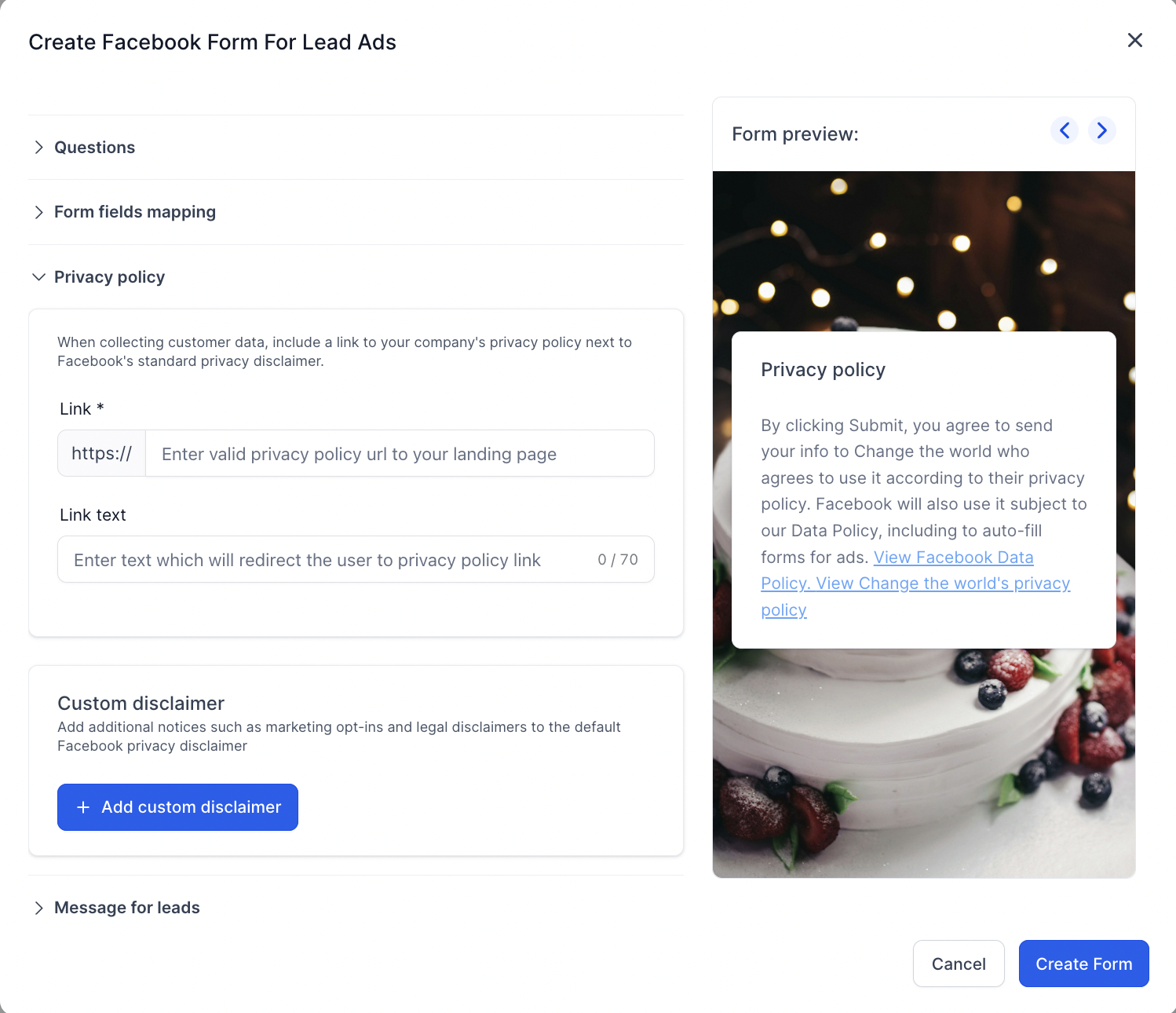
- Next form step isadding privacy policy- Add landing page link of your privacy policy of business or you could make a copy of the privacy policy of LeadConnector (https://www.leadconnectorhq.com/privacy-policy).
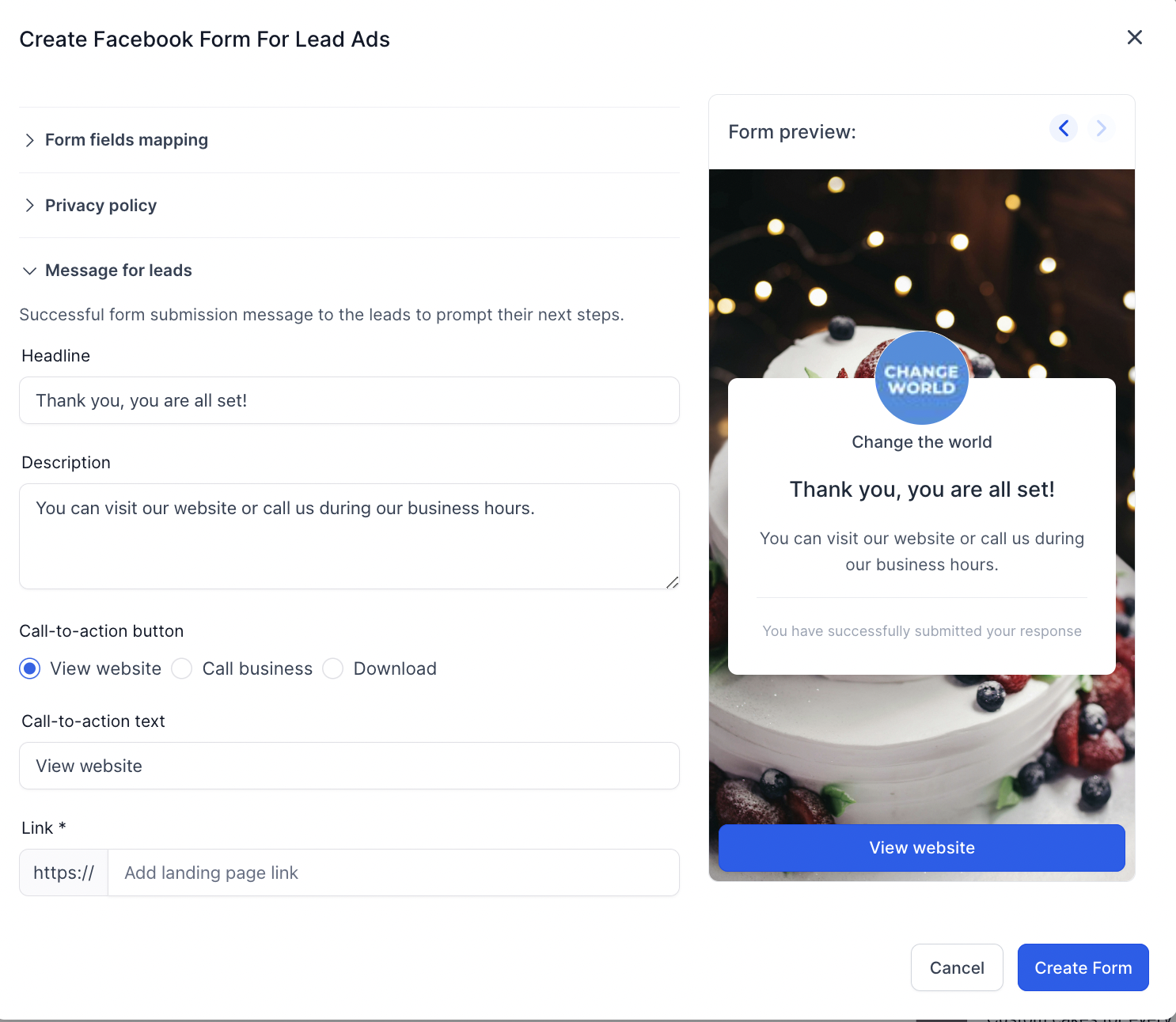
- Next step ismessage for the leadafter completing the form, the form provides option to add headline, description, call to action like taking them to a website or call directly.
- Save the formto go and get the ad objective for Lead Generation

How to use custom fields in Ad Manager?
Below is a short video on how you can create and use custom fields in Ad Manager during Lead form creation and form field mapping.
Currently while creating a lead form on Meta, we see the additional option to add Tracking Parameters:
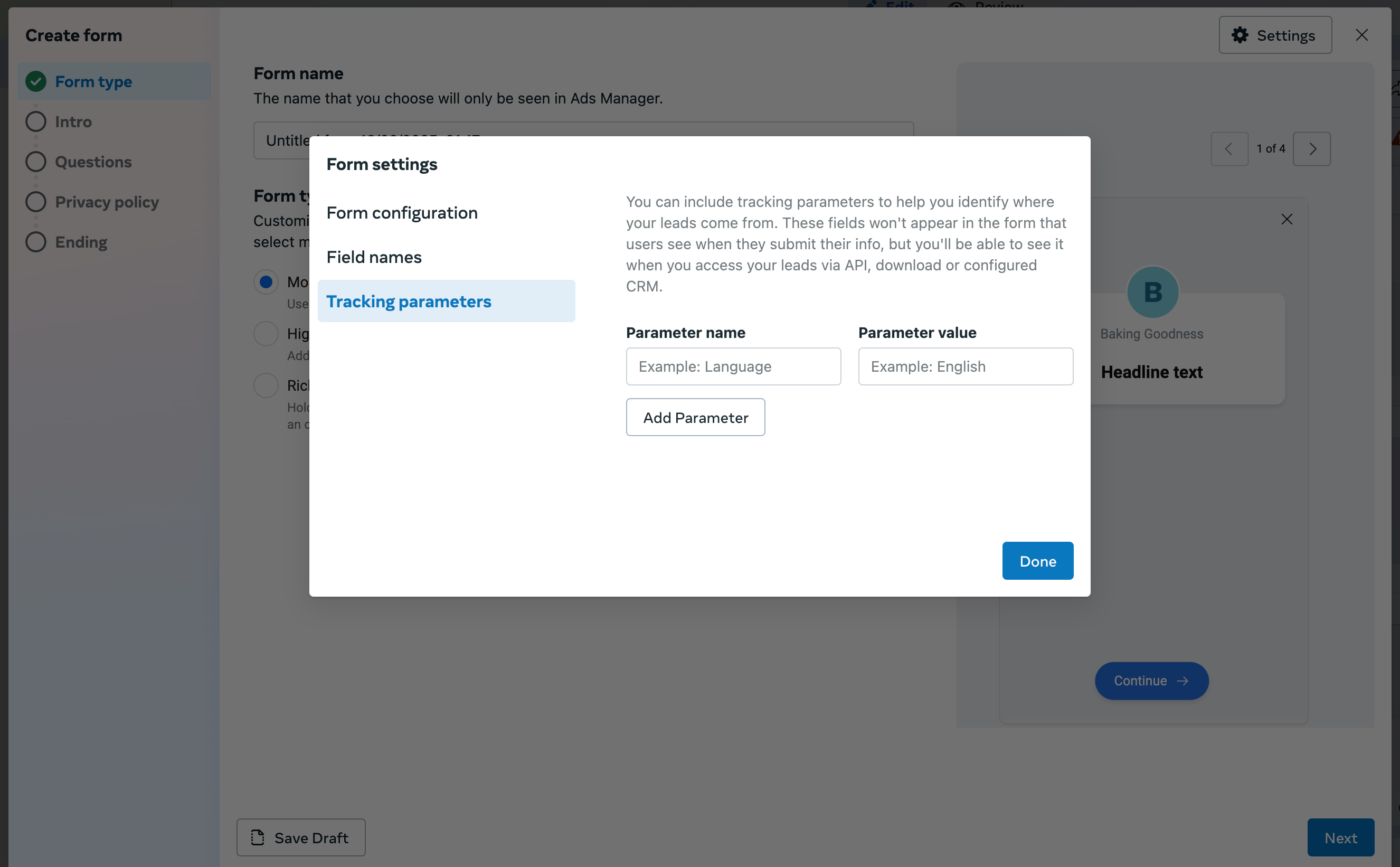
these fields are pulled in when a form created on Facebook is used in HL Ad Manager to create and publish ad campaigns. In order to sync these fields/parameters with the CRM, the form field mapping needs to be done.
The CRM fields which are custom and not present by default in the form field mapping section can be added as custom fields within HL for them to reflect as the CRM fields in the form field mapping section of the lead forms.
Steps to create a custom field and how to use it in the form field mapping is illustrated in the following video:
How to review, map and duplicate existing Facebook lead forms?
As part of enhancing the lead form management experience in Ad Manager, we’ve introduced the ability toreview,map, andduplicateexisting Facebook Lead Forms directly from the campaign setup interface.
Accessing Form Review & Mapping details
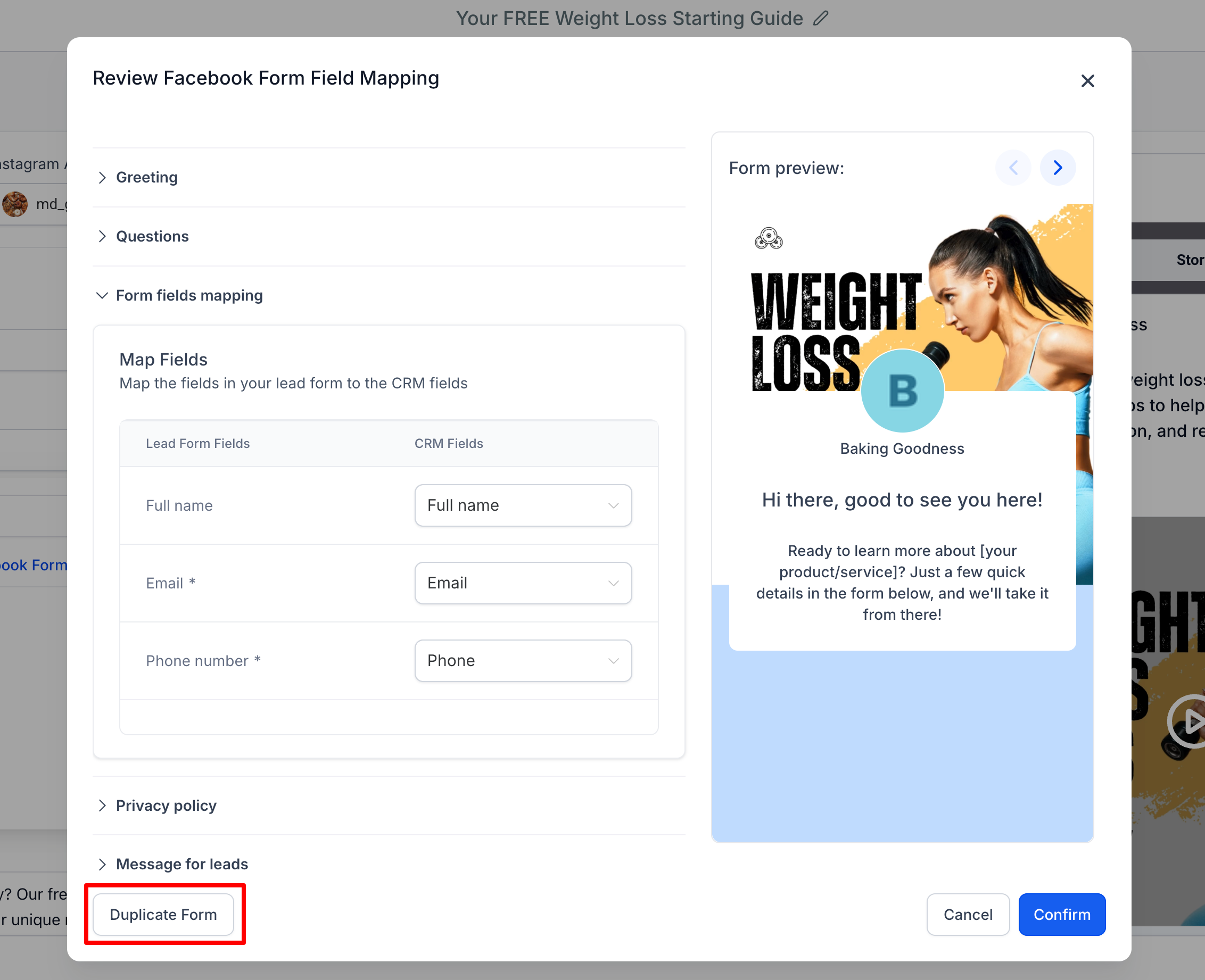
- When selecting a lead form inside theLead Generationcampaign setup, click thepencil/edit iconbeside the form name (hover text: Map Fields / Duplicate Form).
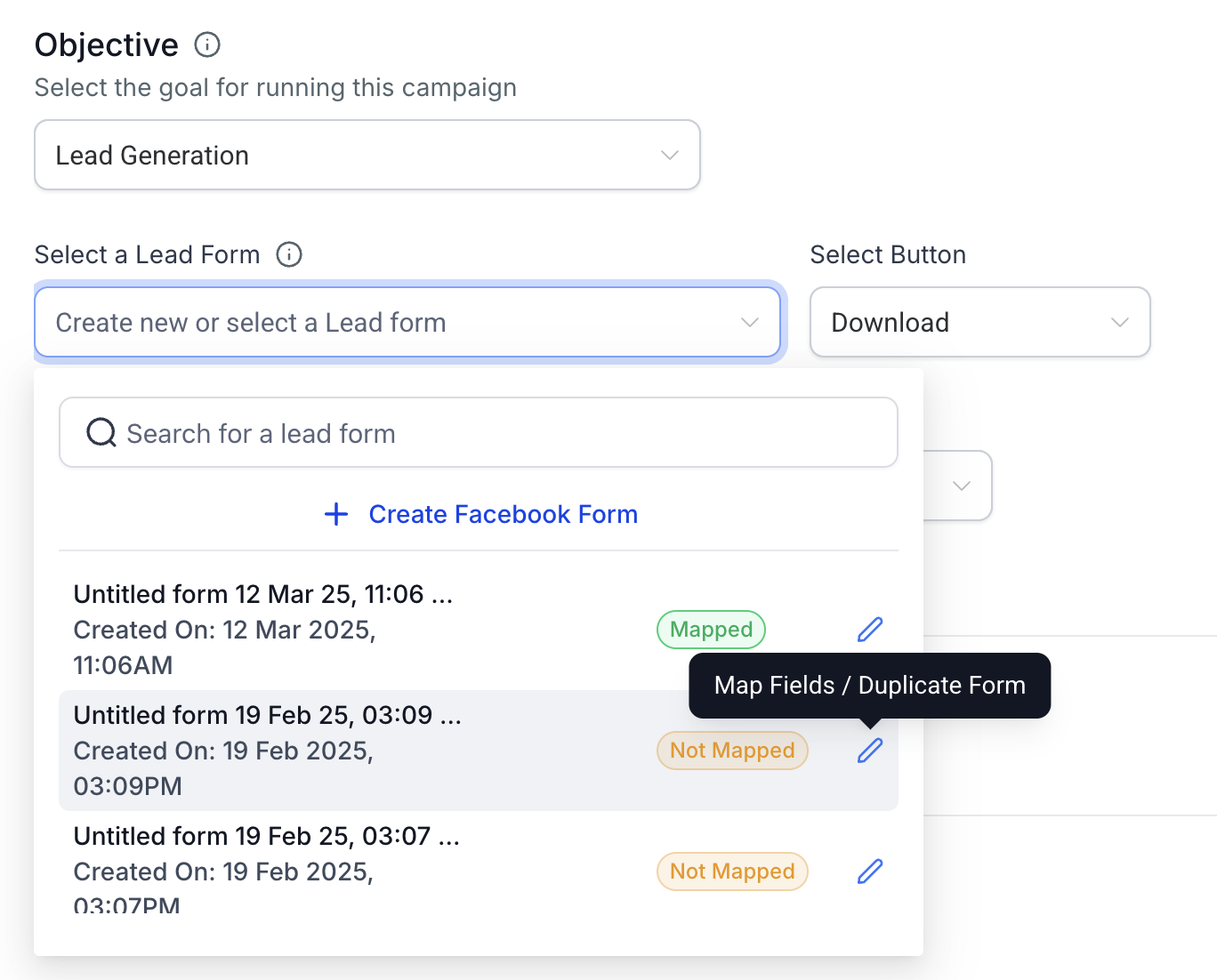
- A modal opens allowing you to:Preview the form contentMap or updateform fields to CRM fieldsEnsure lead syncing is accurate and complete
- Preview the form content
- Map or updateform fields to CRM fields
- Ensure lead syncing is accurate and complete
Duplicating a Facebook Form
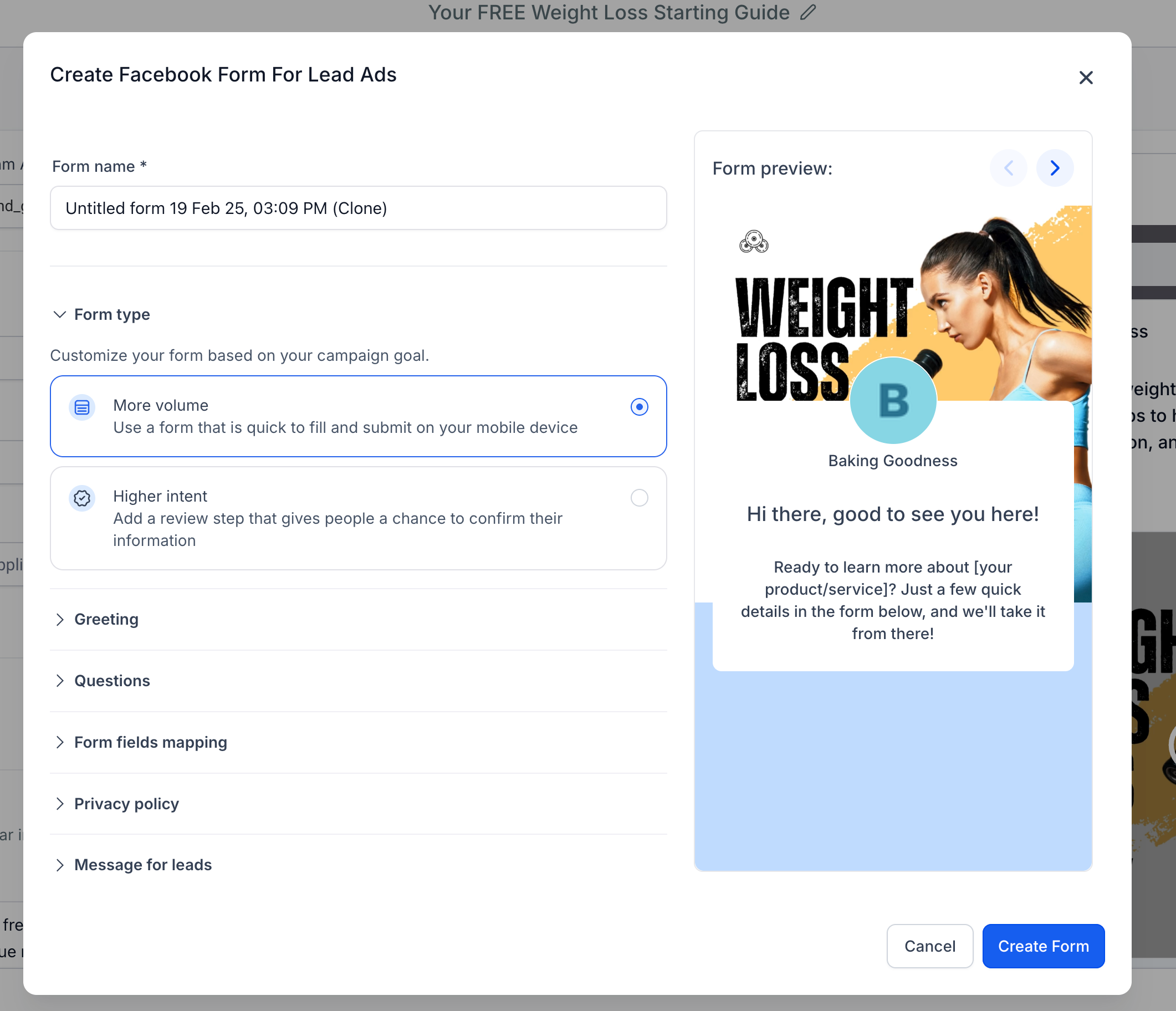
From the same modal, you’ll now see a"Duplicate Form"button at the bottom left. Clicking it opens a new view with all the fields pre-filled based on the original form.
- You can make any edits to the cloned version.
- Once satisfied, clickCreate Formto save it as a new Lead Form.
Field Mapping Prompt
To prevent missed data syncing, if the selected form hasn’t been mapped yet, a message will now appear just below the form selector:
“Form fields of the selected form are not mapped, map now.”
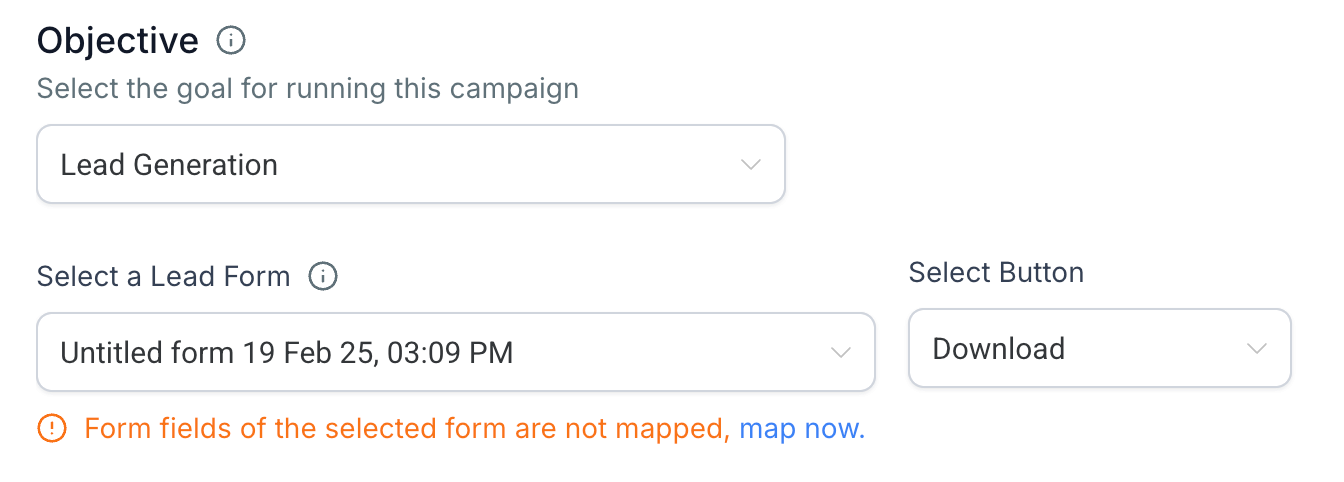
Clicking“map now”will directly open the review modal to complete the field mapping process with your CRM fields.