Conectar Facebook com o Ad Manager
- How clients can subscribe to Ad Manager
- Onboarding flow - It includes connecting your Facebook account, Meta Ad account and the Facebook page you want to use with Ad Manager and publish ad campaigns.
How to subscribe for Ad Manager?
Irrespective of what plan agency has selected for Ad Manager reselling, the steps to be taken by a sub-account to subscribe are mentioned in the following article.
Agency can provide the user with necessary permissionsto the staff team member by going to the Settings > Teams > edit the permission of specific team member, in the option of roles and permission there will be option to enable the checkbox of Ad Manager.
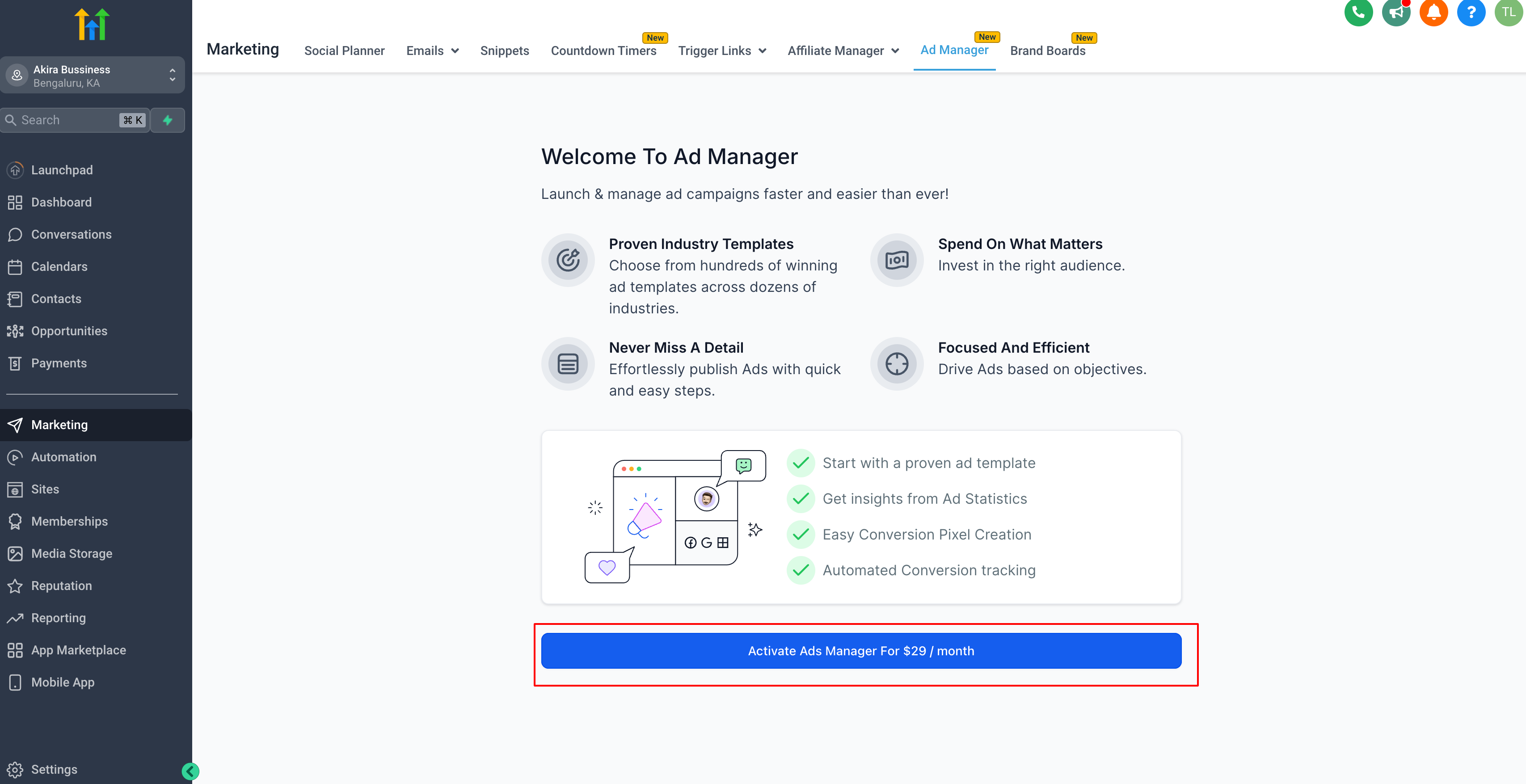
Once done, users can proceed to subscribe Ad Manager from agency by clicking on the 'Activate Ad Manager' button present under the specific Sub-Account ➝ Marketing ➝ Ad Manager tab.
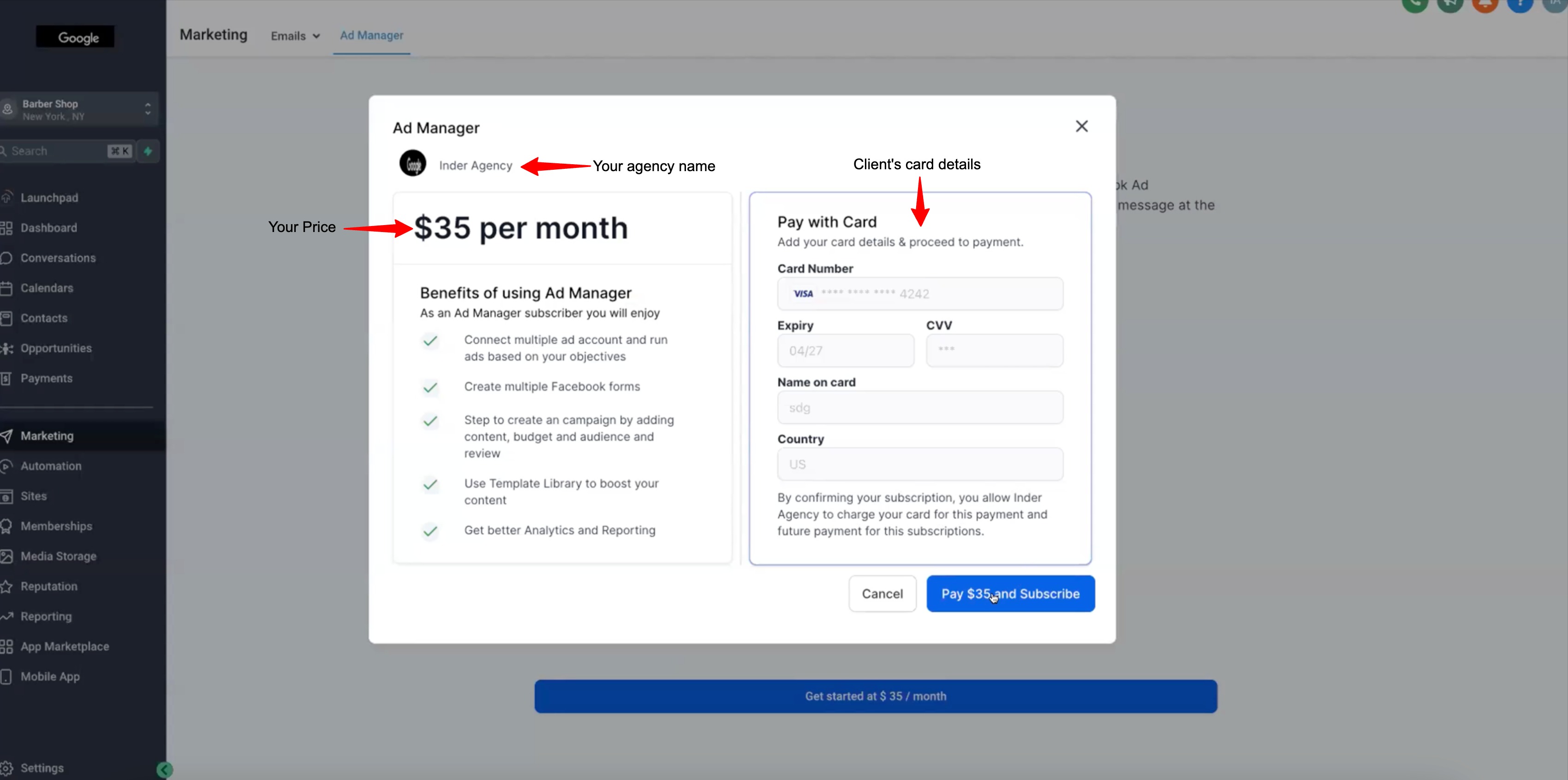
Note:This is a monthly subscription amount which agency charges from sub-accounts to use Ad Manager and publish unlimited campaigns. Payment for the campaign will be charged from the card on file under Meta Ad account, added by the user once campaign is approved by the ad publishing platform to be published.
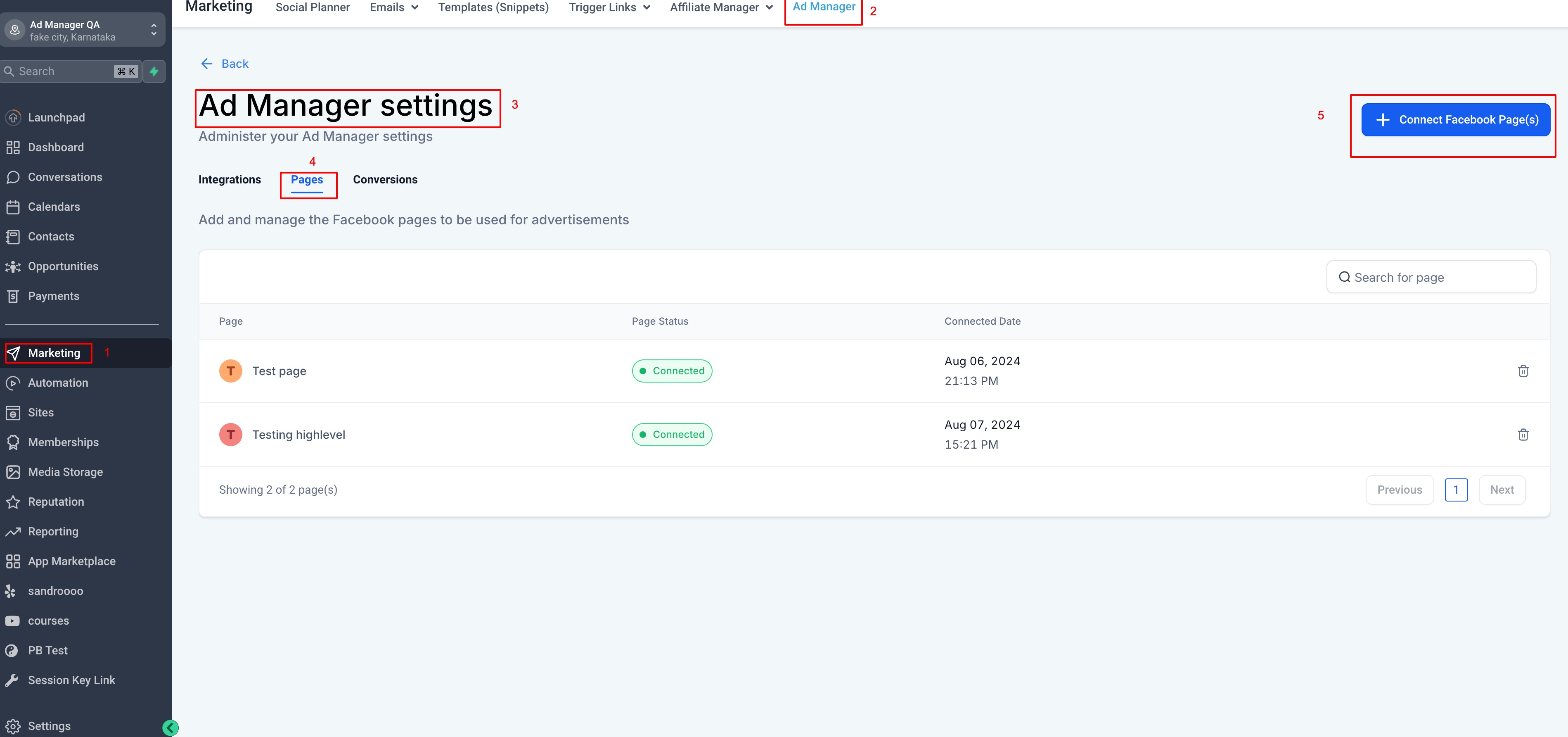
How to connect Facebook with Ad Manager?
1.On click of "Connect Facebook" button, you will be navigated to enter your Facebook credentials and allow permissions to LeadConnector. Along with other permissions, permission to gain access to your Business Manager will also be needed.
Note:Ensure all permission toggles are enabled and checkboxes selected to grant all the permissions to LeadConnector app.
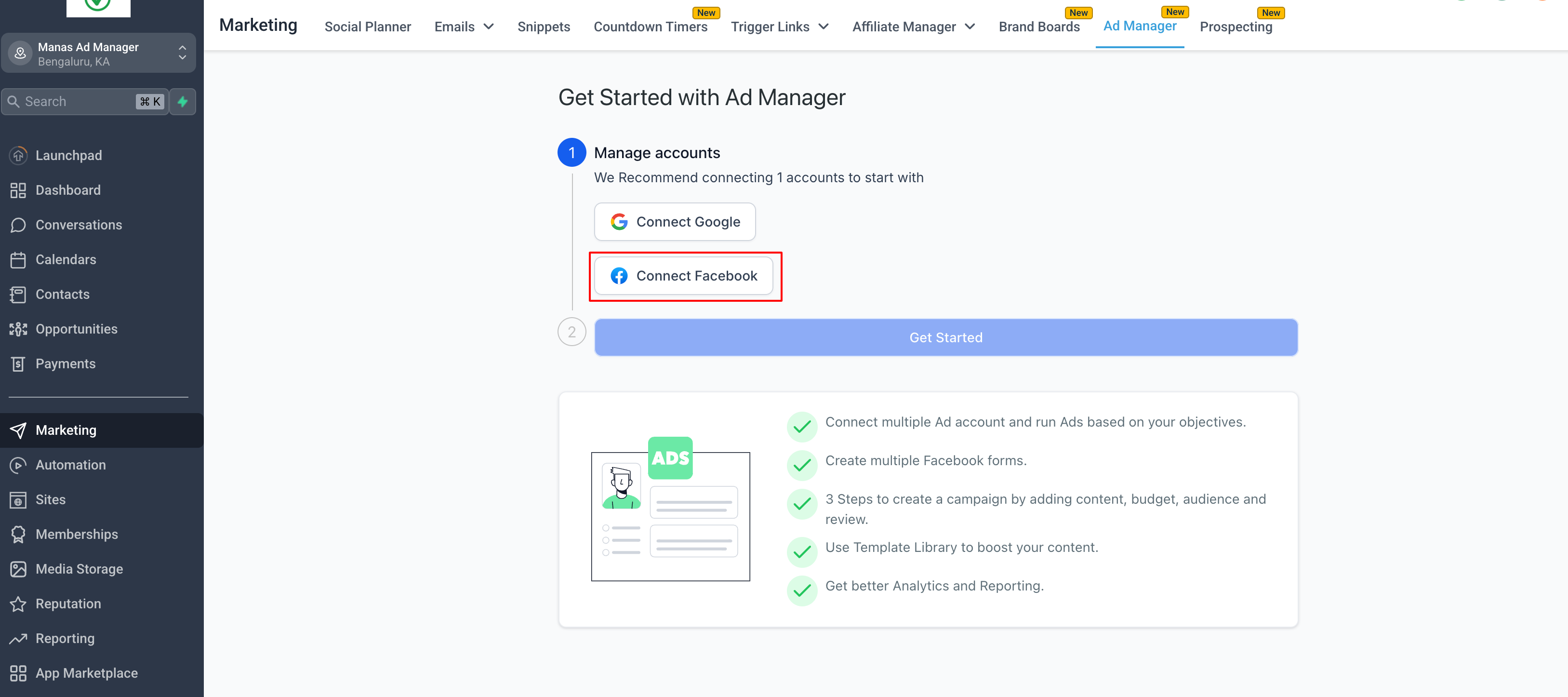
2.Once Facebook account is connected and all the permissions are granted, all the Meta Ad accounts which are associated with the connected Business Manager will be shown in the 'Select Ad Account' dropdown and any one of them which is eligible needs to be selected.
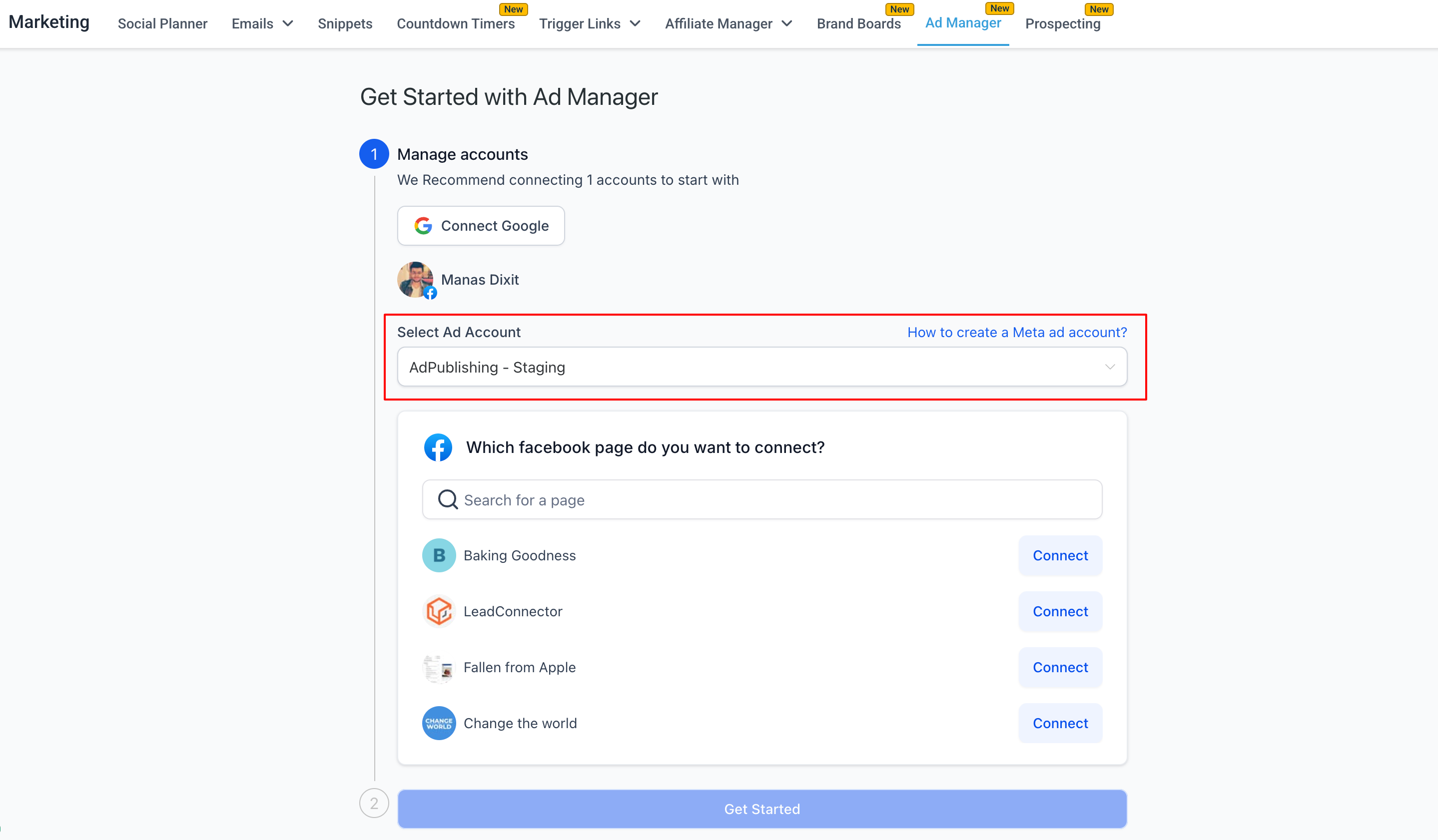
- Active: Fully operational, you can create and run ads without any restrictions - Suitable to connect with Ad Manager.
- Disabled: Ad account is disabled, you cannot create or run any new ads. This status usually occurs when Facebook detects a policy violation or suspicious activity associated with your ad account. - Cannot be connected with Ad Manager
- Unsettled: You have unsettled billing with Facebook which needs to be rectified. - Suitable to connect with Ad Manager.
- Pending risk review: This status indicates that your ad account is under review by Facebook's team, typically after you've made changes to your account information or billing details. During this period, you may have limited ability to create or edit ads. - Suitable to connect with Ad Manager.
- Pending closure: This status means that your ad account is scheduled for permanent closure, often due to repeated or severe policy violations. - Suitable to connect with Ad Manager.
- Closed: If your ad account has this status, it has been permanently closed by Facebook, and you cannot create or run any ads from this account. - Cannot be connected with Ad Manager
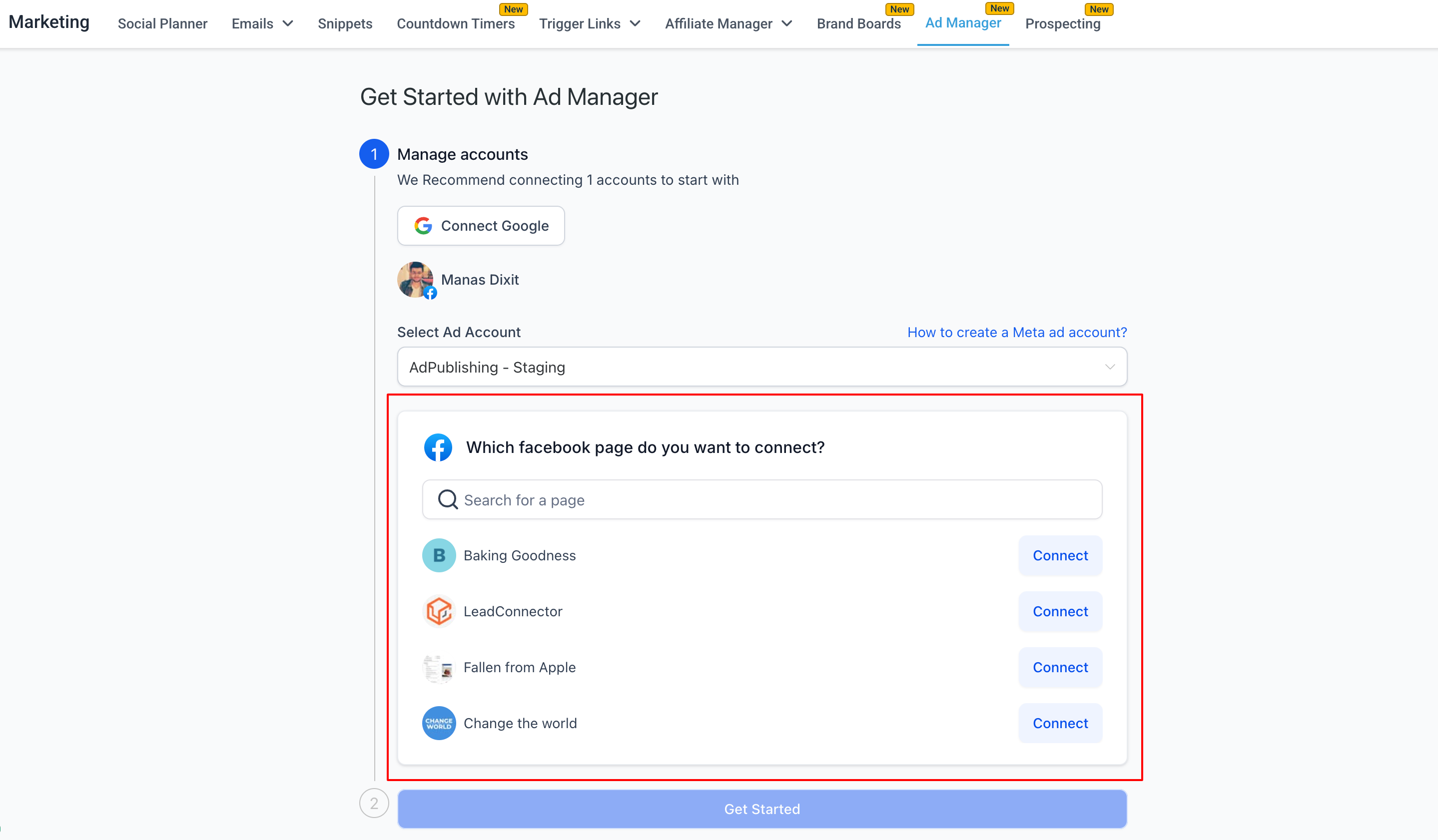
Note:One Facebook page can be connected from the onboarding flow, if you want to connect more than one, it can be done under Ad Manager settings > Pages tab, by clicking on 'Connect Facebook page(s)'.