
Visão Geral da Aba Públicos - Configurações do Ad Manager
In this article, we will explore how to locate your existing custom and lookalike audiences, along with the actions you can take, such as creating a new audience, editing the name and description of an existing audience, and deleting an existing audience.
TABLE OF CONTENTS
- Where to find the list of audiences in Ad Manager?
- How to create a new audience?
- What are the other actions that can be performed on the existing audiences?
- How to delete an audience?
Where to find the list of audiences in Ad Manager?
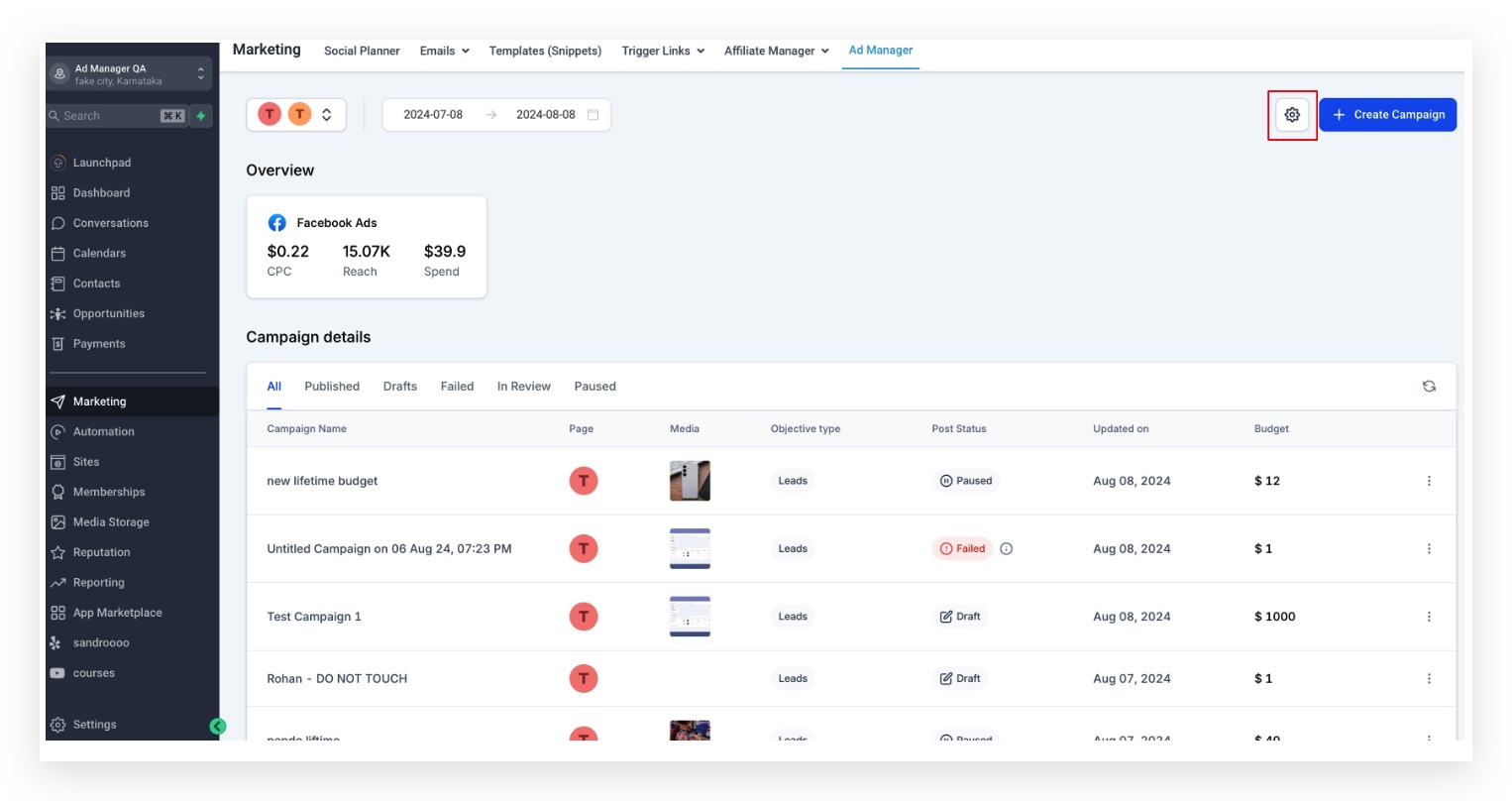
You can go to Ad Manager settings by clicking the settings icon (highlighted in the screenshot below) on the Ad Manager home page.
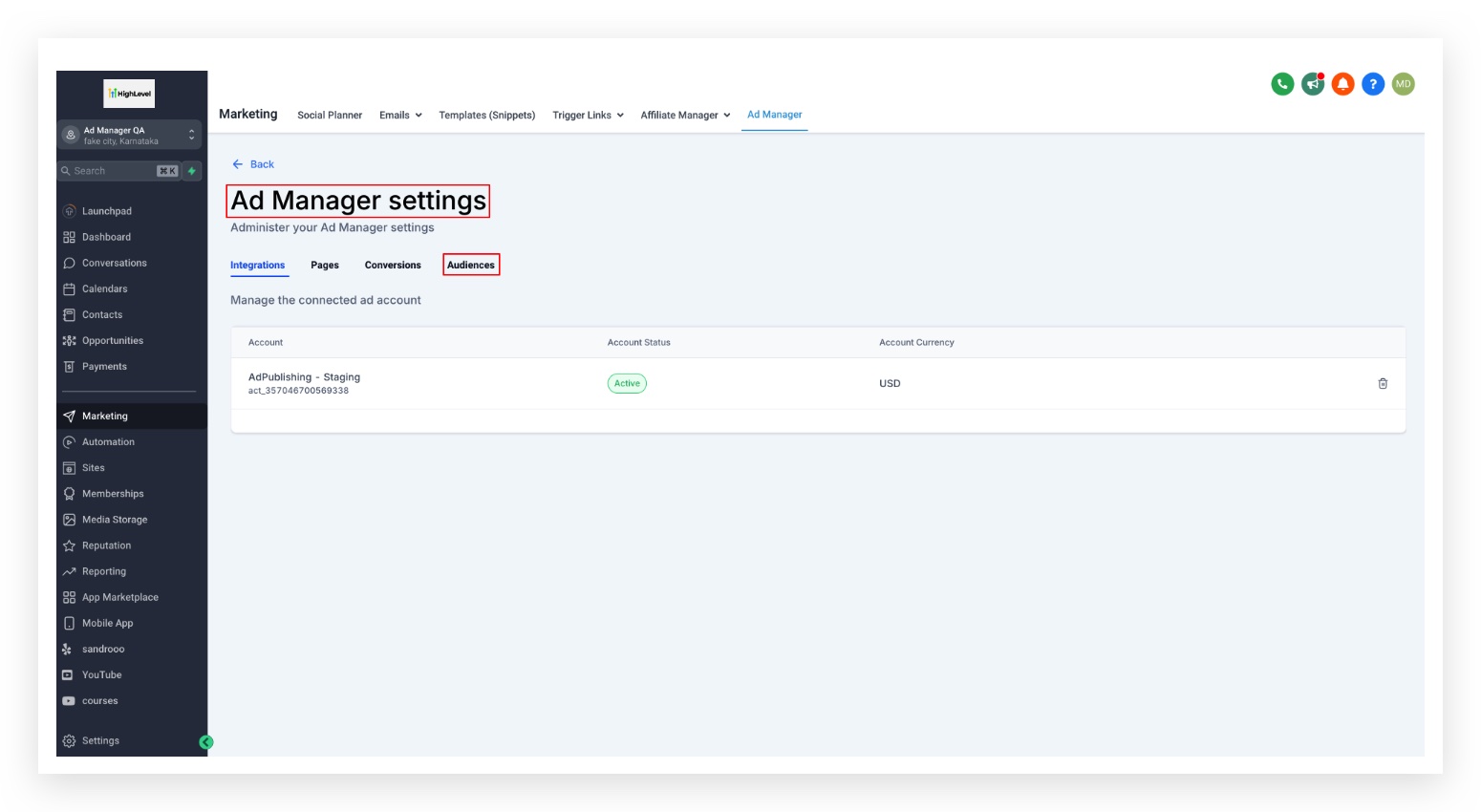
There are four tabs present under ad manager settings, namely 'Integrations', 'Pages', 'Conversions' and 'Audiences' with each having a specific function or the information they hold. As part of this article we will be focusing on the "Audiences" tab and it's constituents.
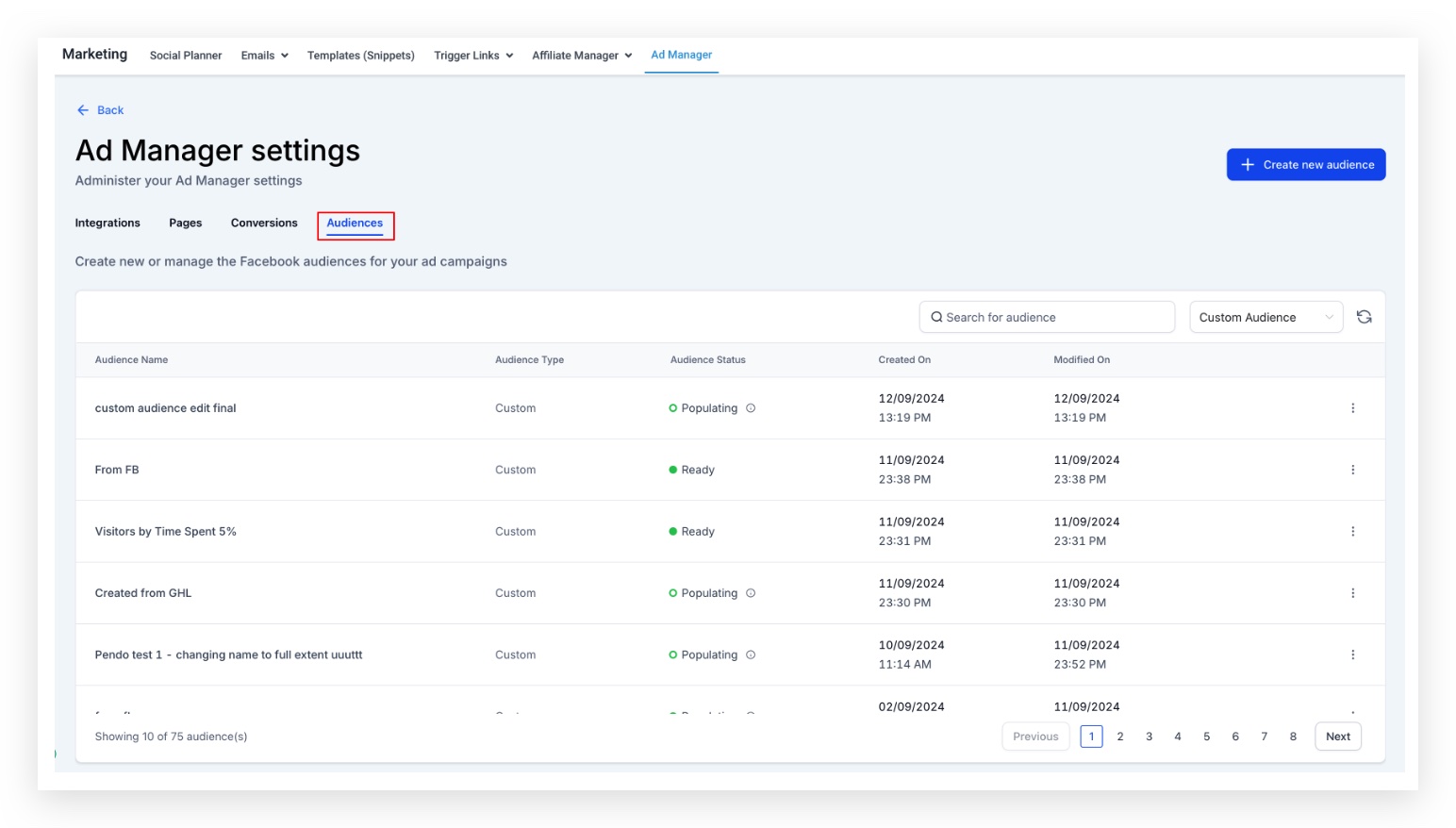
Once user clicks on the Audiences tab, they can see the list of all the audiences created within Ad Manager and the audiences already created in Meta platform and pulled in from the connected ad account.
How to create a new audience
There are two ways to create new audiences(both lookalike and custom audience) which are as follows:
- During the campaign creation flow, both custom and lookalike audiences can be created and the steps to do so are detailed in the respective articles:Create lookalike audiences in Ad ManagerandCreate custom audiences in Ad Manager. The mentioned articles can be referred for detailed steps on how to create respective audiences.
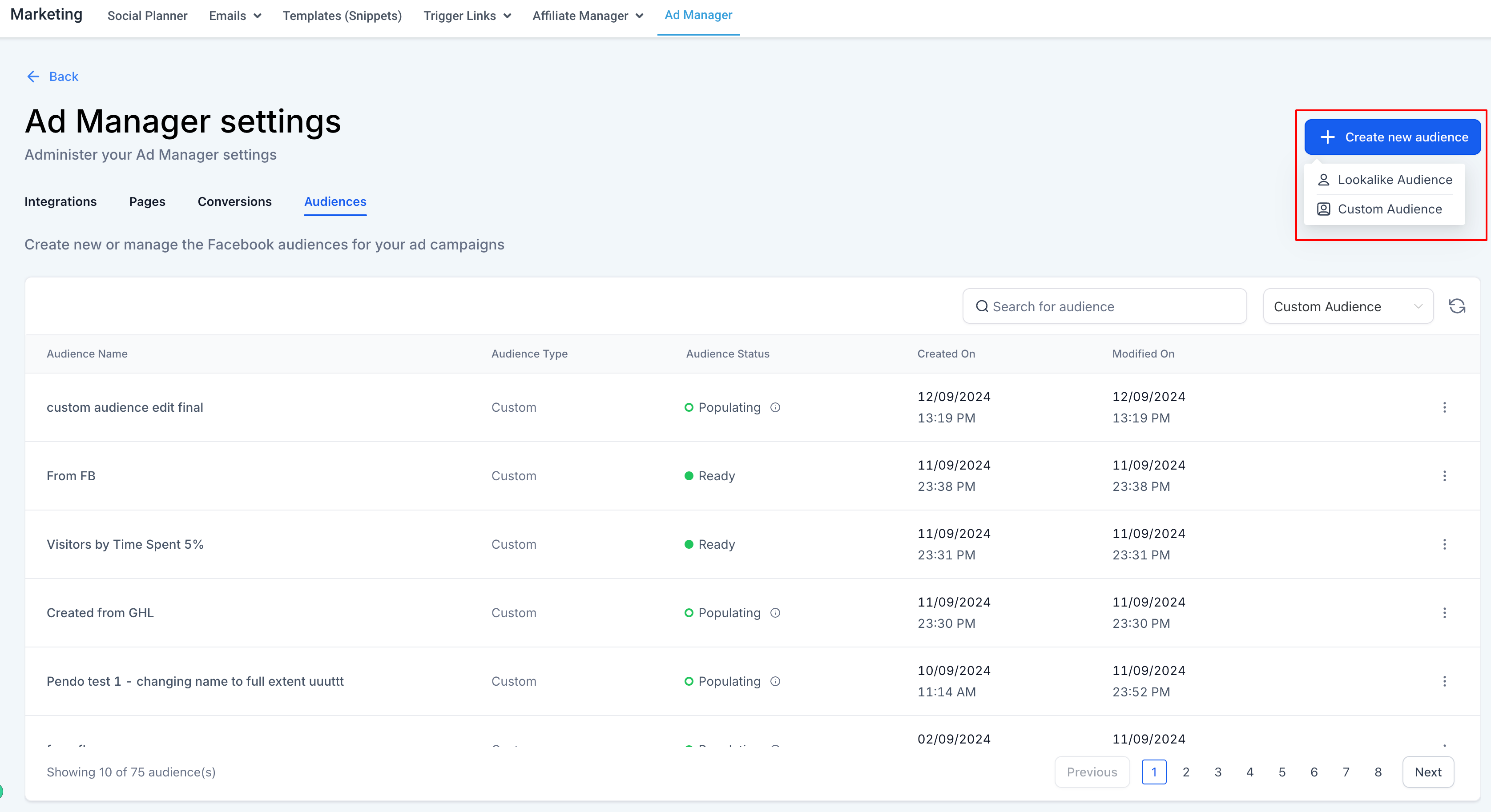
- In the Ad Manager settings > under the Audiences tab, we have the provision to create new audiences by clicking on the 'Create new audience' button which further opens up into two options namely, Lookalike and Custom Audience. On click of either, the respective flow to create the audience begins and user can successfully create an audience which will start showing up in the below shown list of audiences. Refer to the help articles mentioned in point 1 for detailed steps to create an audience.
What are the other actions that can be performed on the existing audiences?
Along with the option to create new audiences, below is the list of actions that can be performed on the existing audiences:
- Users can search for a specific audience by clicking on the 'search for audience' box and look for an audience present in the list by typing in the name of the audience.
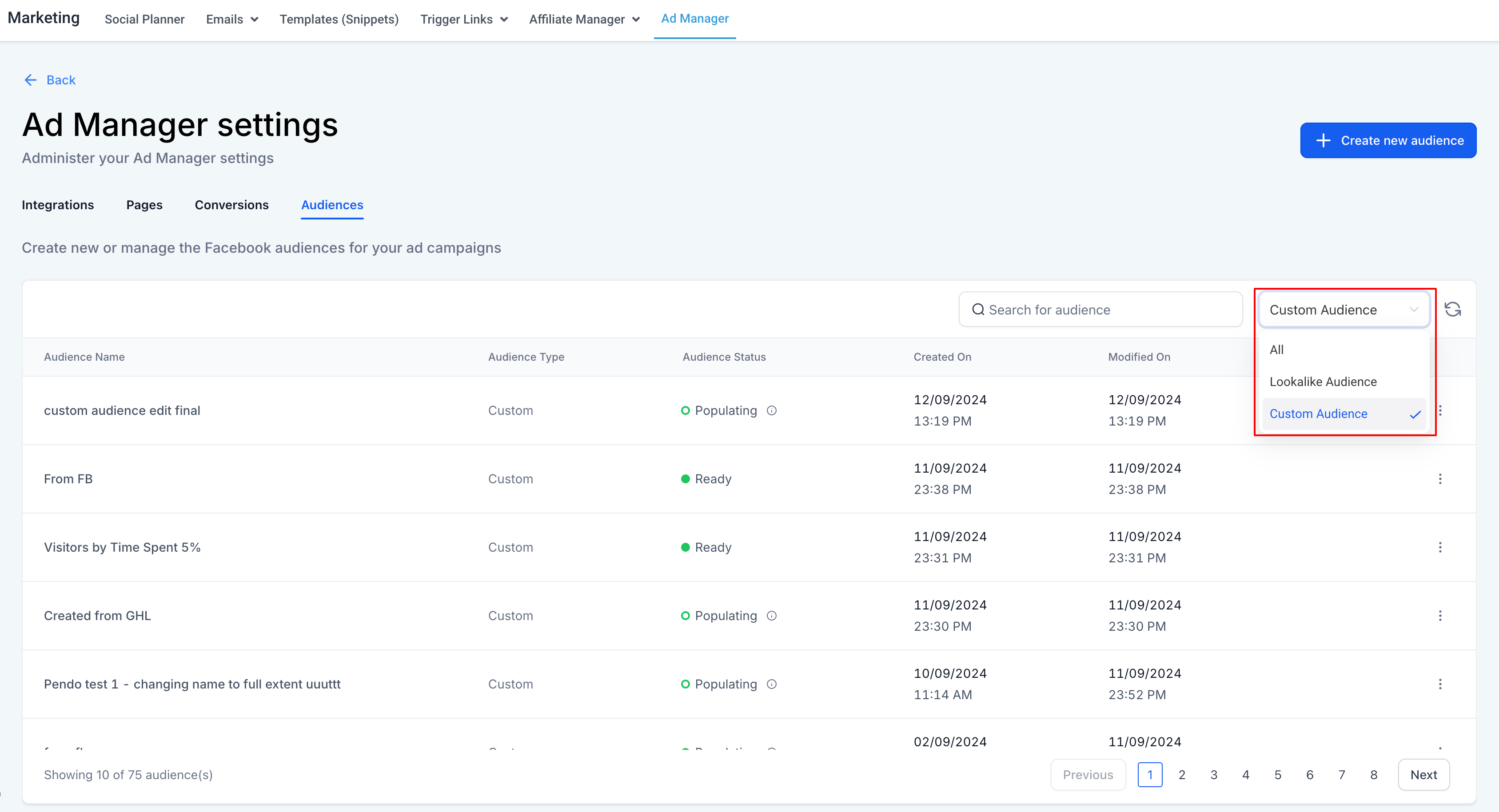
- An additional selection box exists next to the search box to show 'All', 'Custom' and 'Lookalike' audiences. On click of each from the list, the behaviour of the list will change based on:All- The list will show all the audiences irrespective of their type that are present within Ad Manager.Custom Audience-The list will show only the custom audiences that are present within Ad Manager.Lookalike Audience-The audience list will show only the lookalike audiences that are present within Ad Manager.
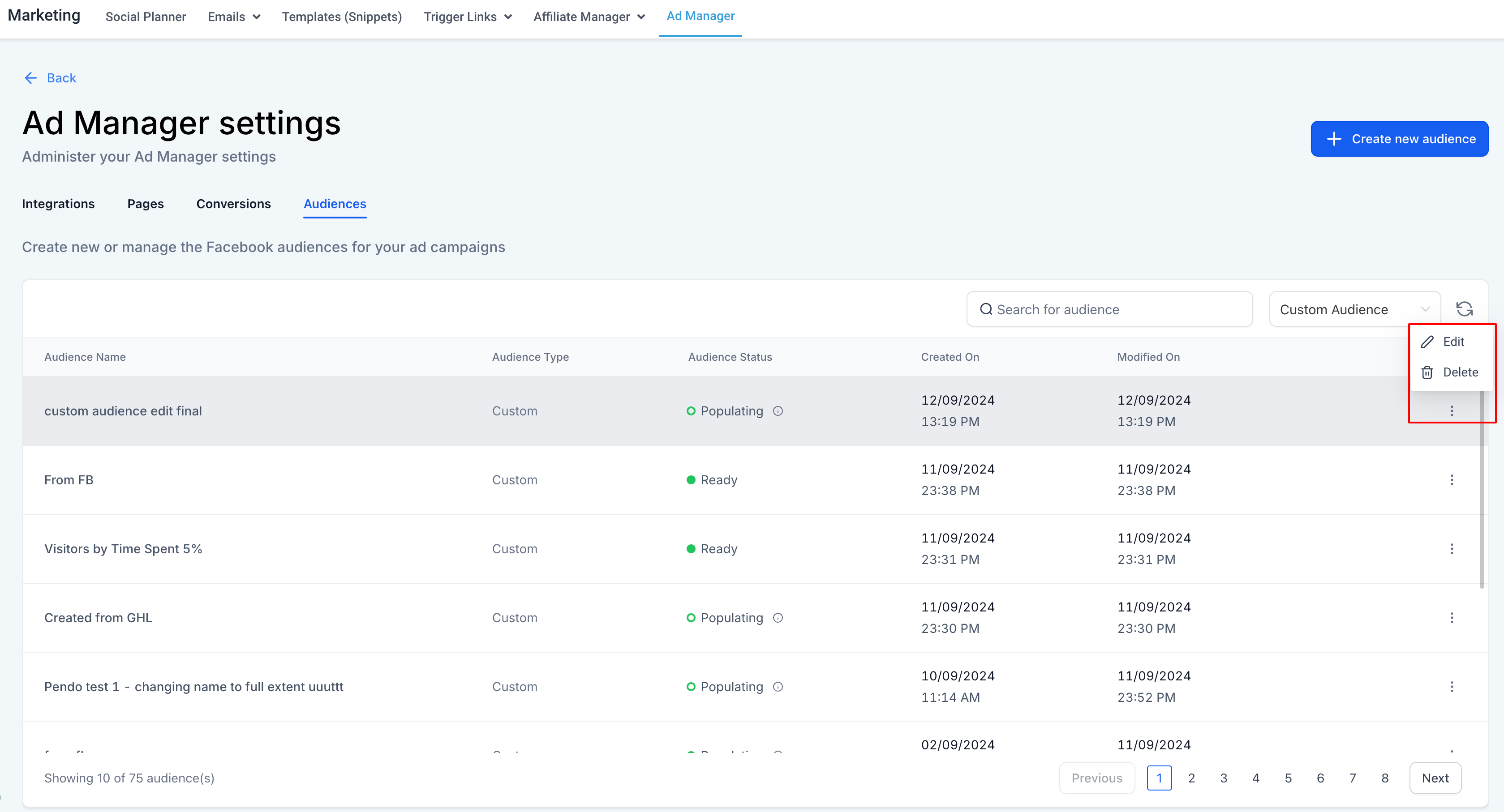
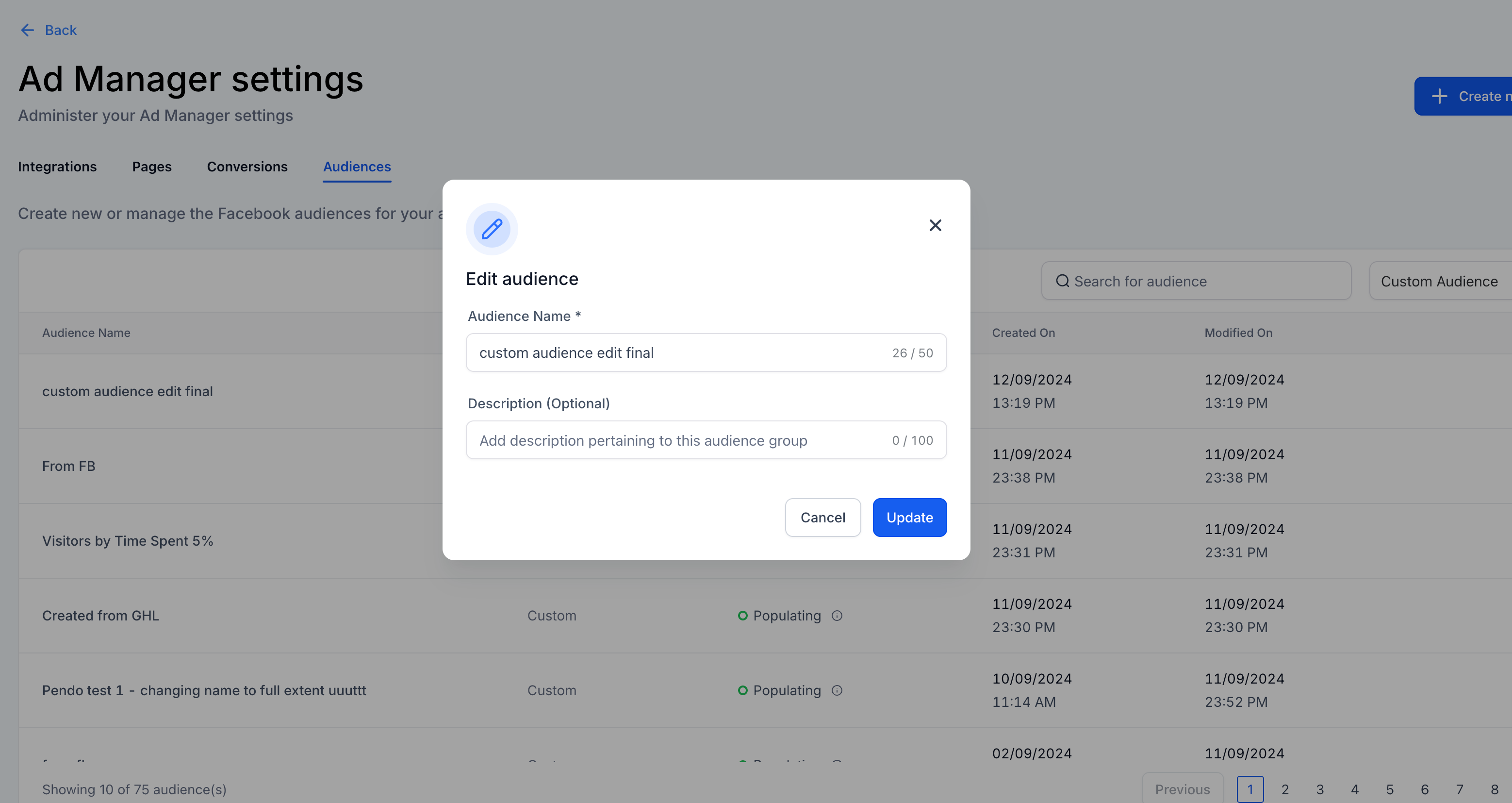
- Users can edit the name and description of an existing audience by clicking on theellipsespresent in line with each audience and clicking onEdit.4. A dialog box will appear, allowing you to edit the name and description of the selected audience.
4. A dialog box will appear, allowing you to edit the name and description of the selected audience.
How to delete an audience
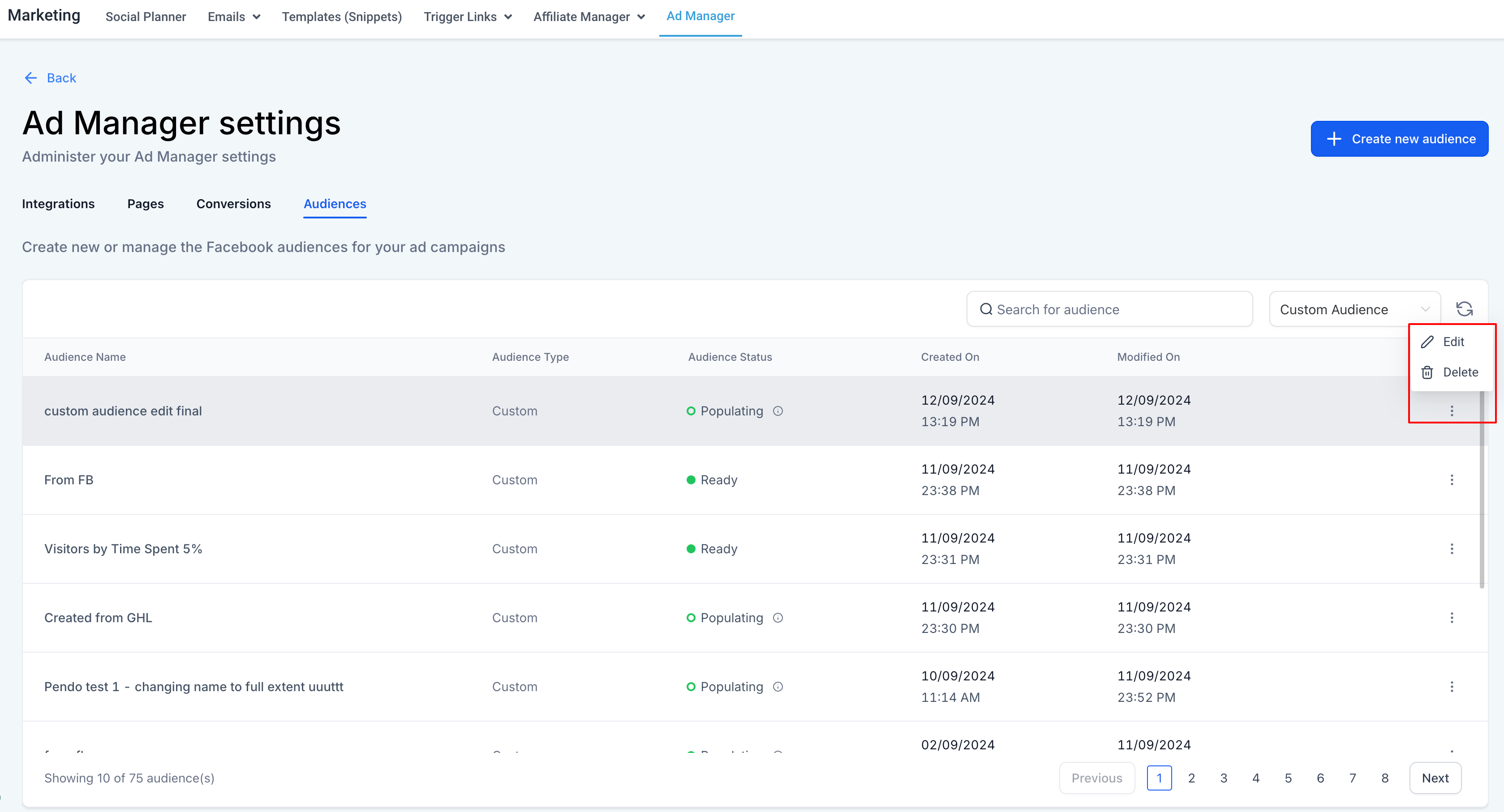
The ellipses with the option toDeleteis present in line with each audience, user can click on the delete button to remove the corresponding audience from all the draft and paused campaigns provided the audience is not associated to any active campaign.
1. When a user attempts to delete an audience that is associated with one or more active campaigns, a validation message will appear, indicating that the audience cannot be deleted because it is part of an active campaign.
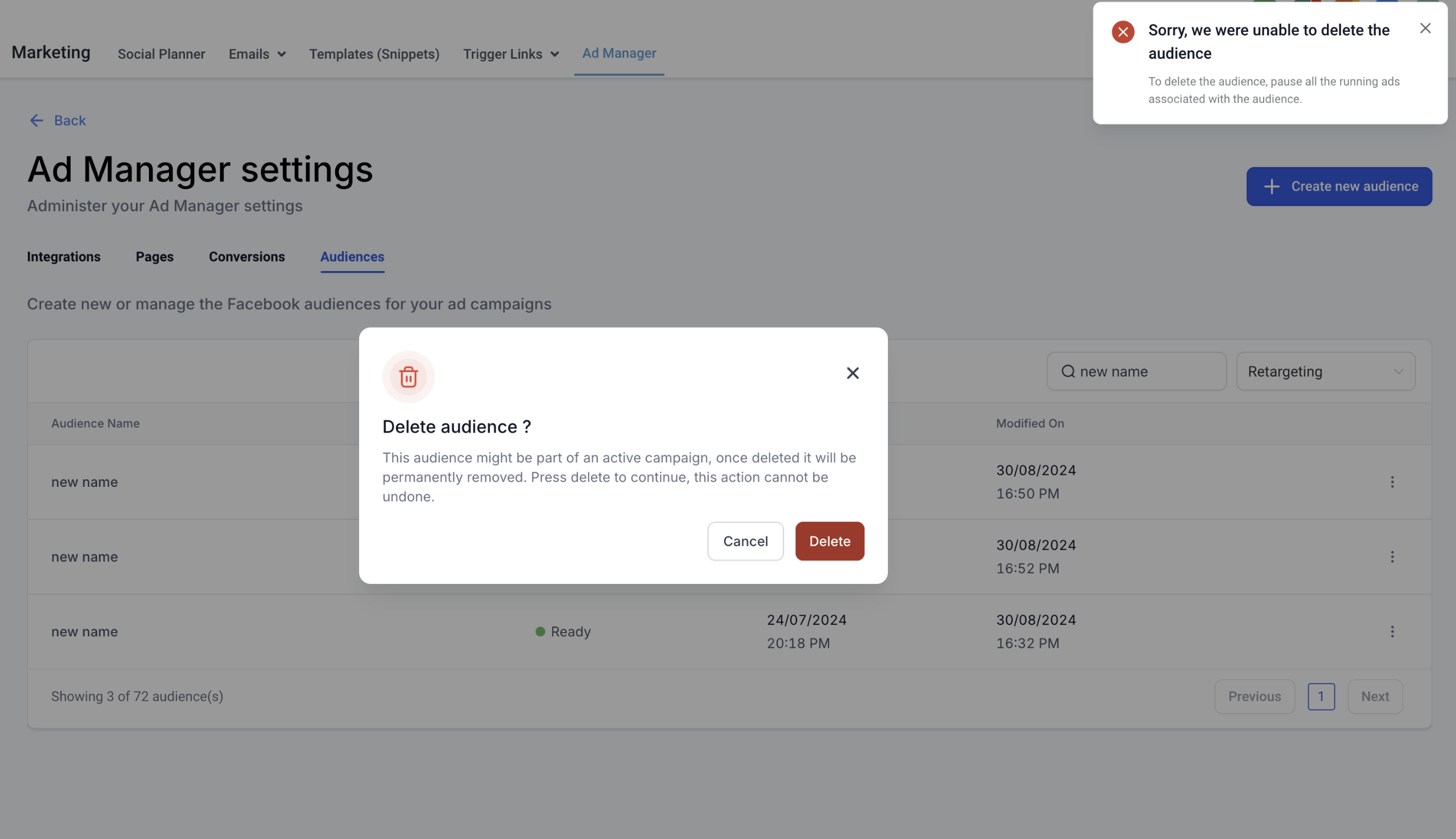
Note:In order to delete the audience, all active campaigns associated with the audience must be paused first.
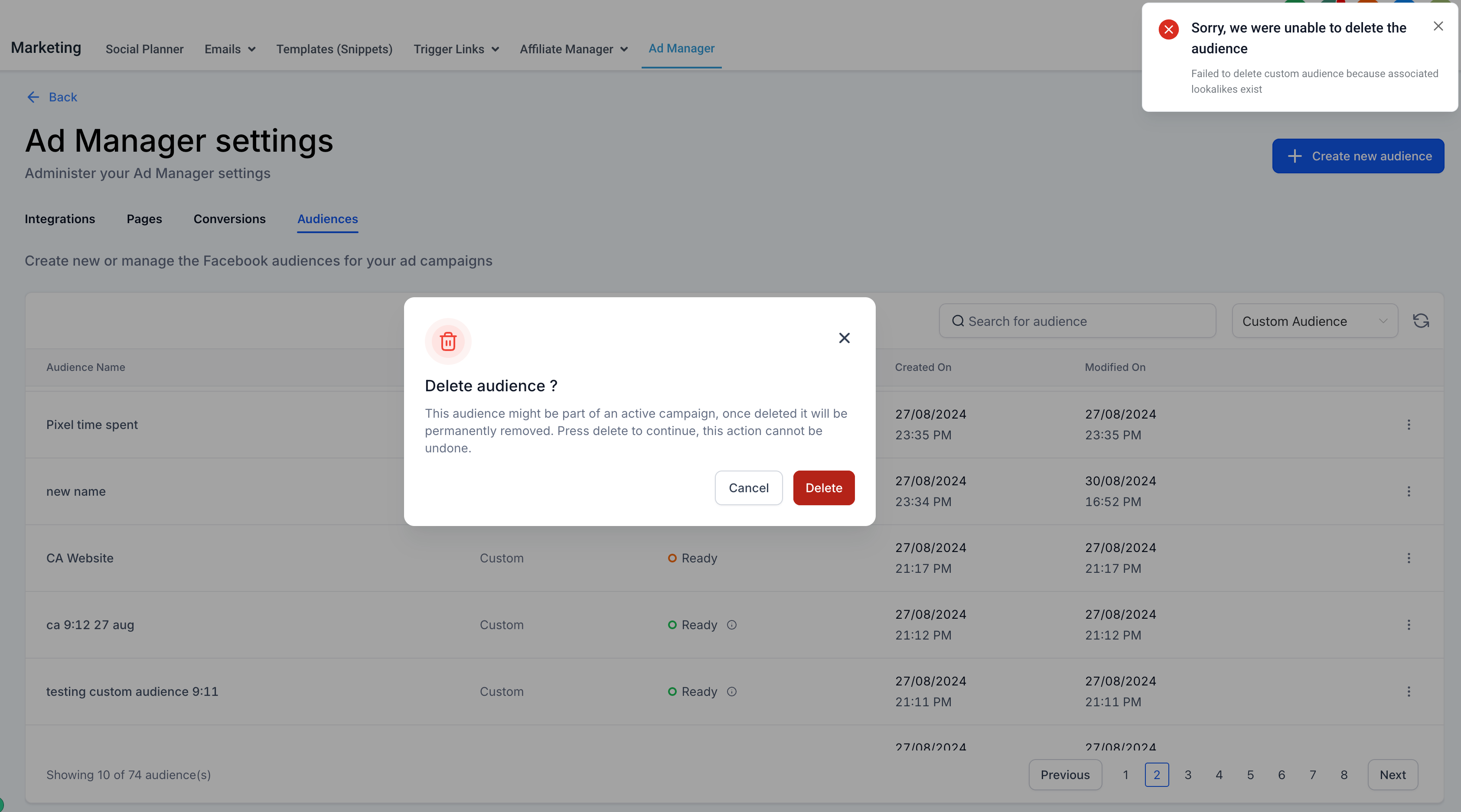
2. If a user tries to delete a custom audience that has been used to create a lookalike audience, an error message will be displayed, indicating that the deletion cannot proceed unless the associated lookalike audience is removed first.
Frequently Asked Questions
- Is there a limit to the number of audiences I can create?While there is no specific limit mentioned, it's best to keep your audience list organized to ensure effective management and utilization. Excessive audiences may complicate your campaign strategies.
- How often can I update the criteria for my audiences?You can update the criteria for your audiences as often as needed. However, frequent changes may affect the performance and effectiveness of your audience targeting.
- What happens to an audience if I delete it?Once an audience is deleted, it cannot be recovered. Any campaigns relying on that audience will be affected, so it's important to confirm deletion before proceeding.
- Can I use multiple audiences in a single ad campaign?Yes, you can use multiple audiences in a single ad campaign, allowing for more targeted advertising strategies. However, make sure to monitor performance across these audiences to optimize results.