
Ad Manager - Estatísticas de Campanhas de Anúncios
In this article we will be illustrating and explaining the process to effectively monitor the ad campaigns created by the users and make data driven decisions based on different metrics. This will serve as a crucial tool for advertisers to measure, analyse, and optimise their advertising campaigns, ultimately driving better results and maximising return on investment.
TABLE OF CONTENTS
- What are the Benefits of Having Statistics for Ad Campaigns in Ad Manager?
- Where is the Statistics Section Present in Ad Manager?
- How to Check the Overall Performance of all the Ad Campaigns Present in Ad Manager?
- How to See the Statistics of an Individual Campaign to Measure its Performance?
- How to see and save the Leads and Sales details of my campaigns?
- What are the different metrics that are shown in the tabular form?
- Frequently Asked Questions
- Related Articles
Key Benefits of Statistics for Ad Campaigns in Ad Manager
The merit of having Statistics of the published ad campaigns in Ad Manager is crucial to make moderations to the existing campaigns based on their performance and other parameters which are mentioned as follows. This assists in ad campaign optimising and generate maximum outcome off it.
- Performance Analysis- Understand how ads are doing
- ROI Measurement- See if ads are making money
- Audience Insights- Know who's seeing the ads
- Campaign Optimisation- Make ads work better
- Budget Allocation- Spend money wisely
- Goal Tracking- Check if ads meet objectives
- Competitive Analysis- See how ads stack up against rivals
Where is the Statistics Section Present in Ad Manager?
On Ad Manager home screen, there are two tabs present: Campaigns(default selection) andStatistics. Click on Statistics tab, a new screen opens up showing the different metrics associated with all the Published and Paused campaigns.
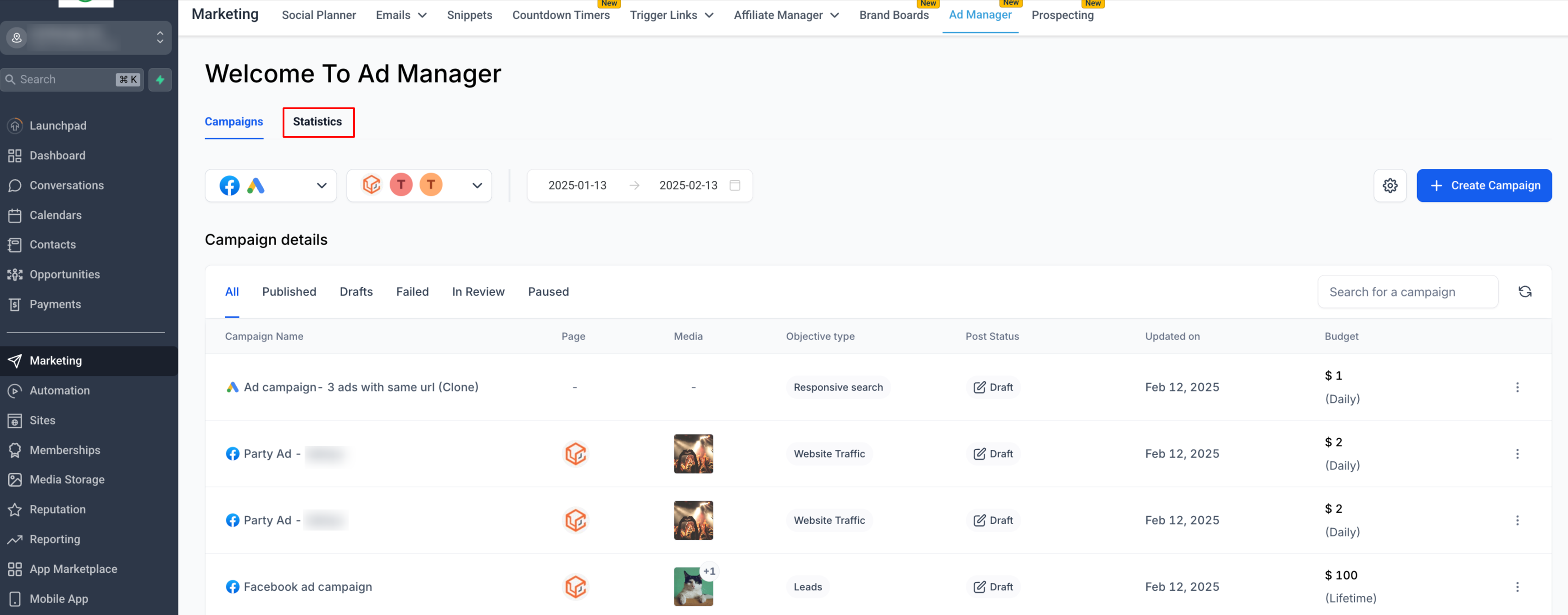
Here's a quick video illustrating the flow of Ad Manager Statistics:
How to Check the Overall Performance of all the Ad Campaigns Present in Ad Manager?
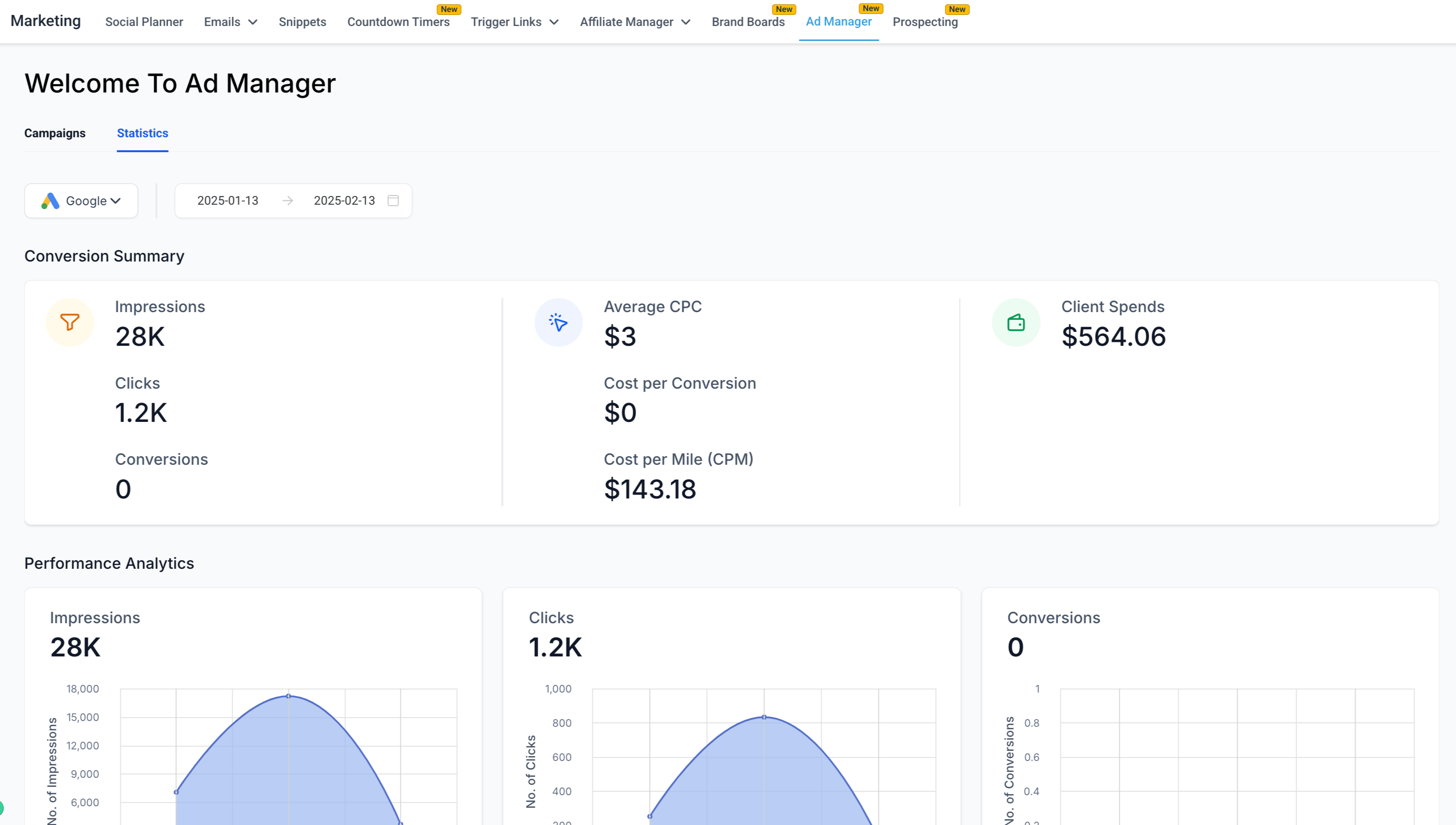
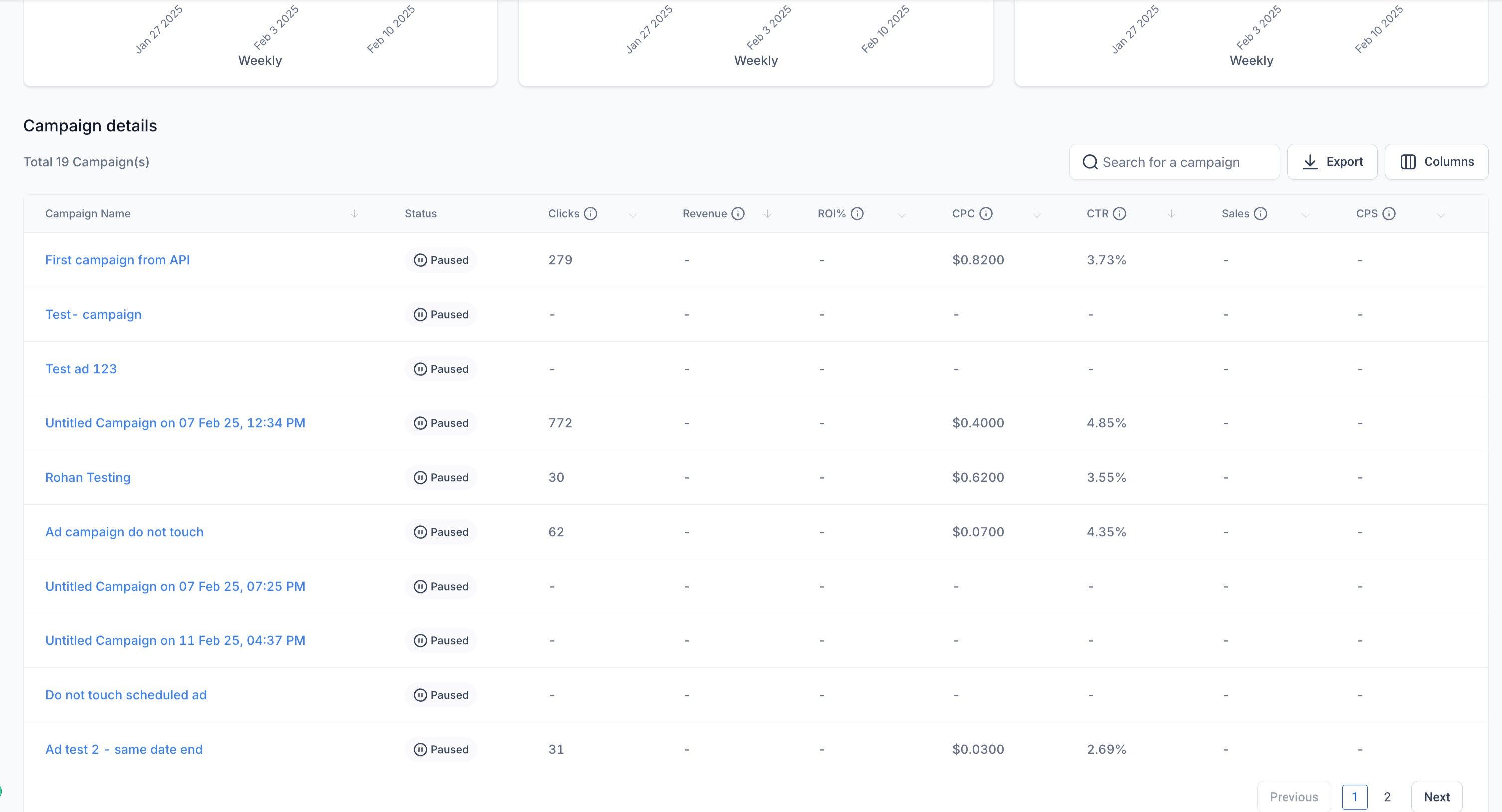
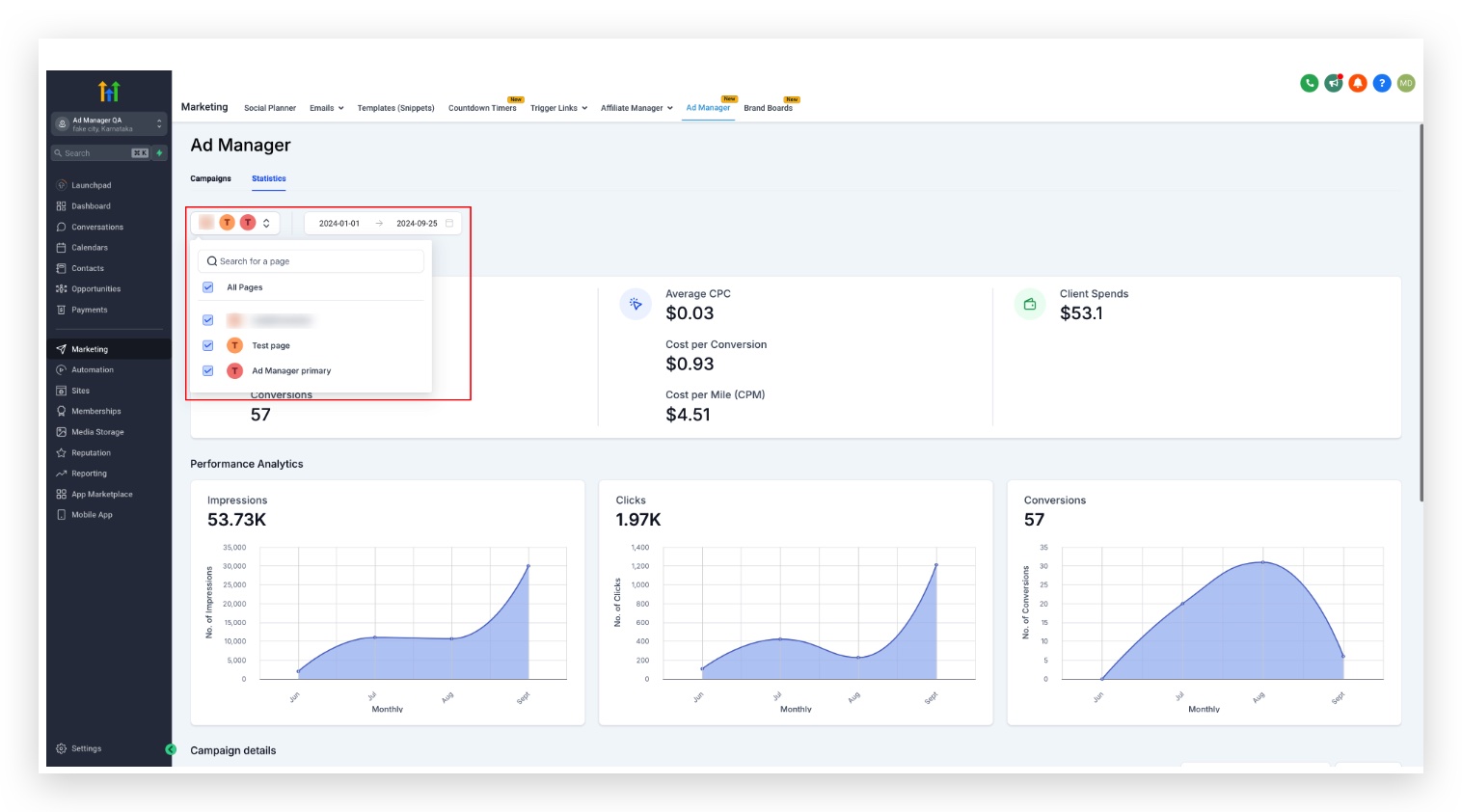
On click of the statistics tab, users can visualise thePerformance AnalyticsandConversion Summaryof all the campaigns along with the tabular representation of different metrics specific to all the campaigns.
On click of the filter at top left of the statistics page, users can choose the platform for which they want to see the metrics.
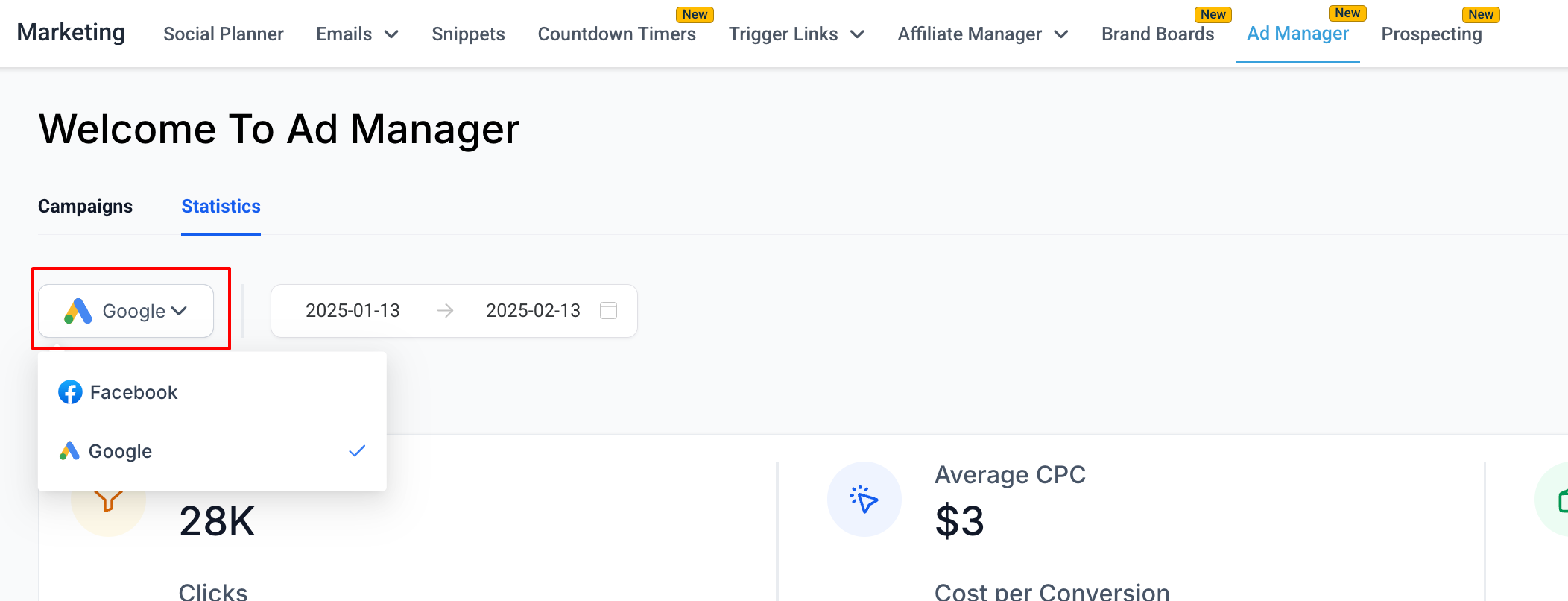
A: Google Ad Platform
B: Facebook Ad Platform
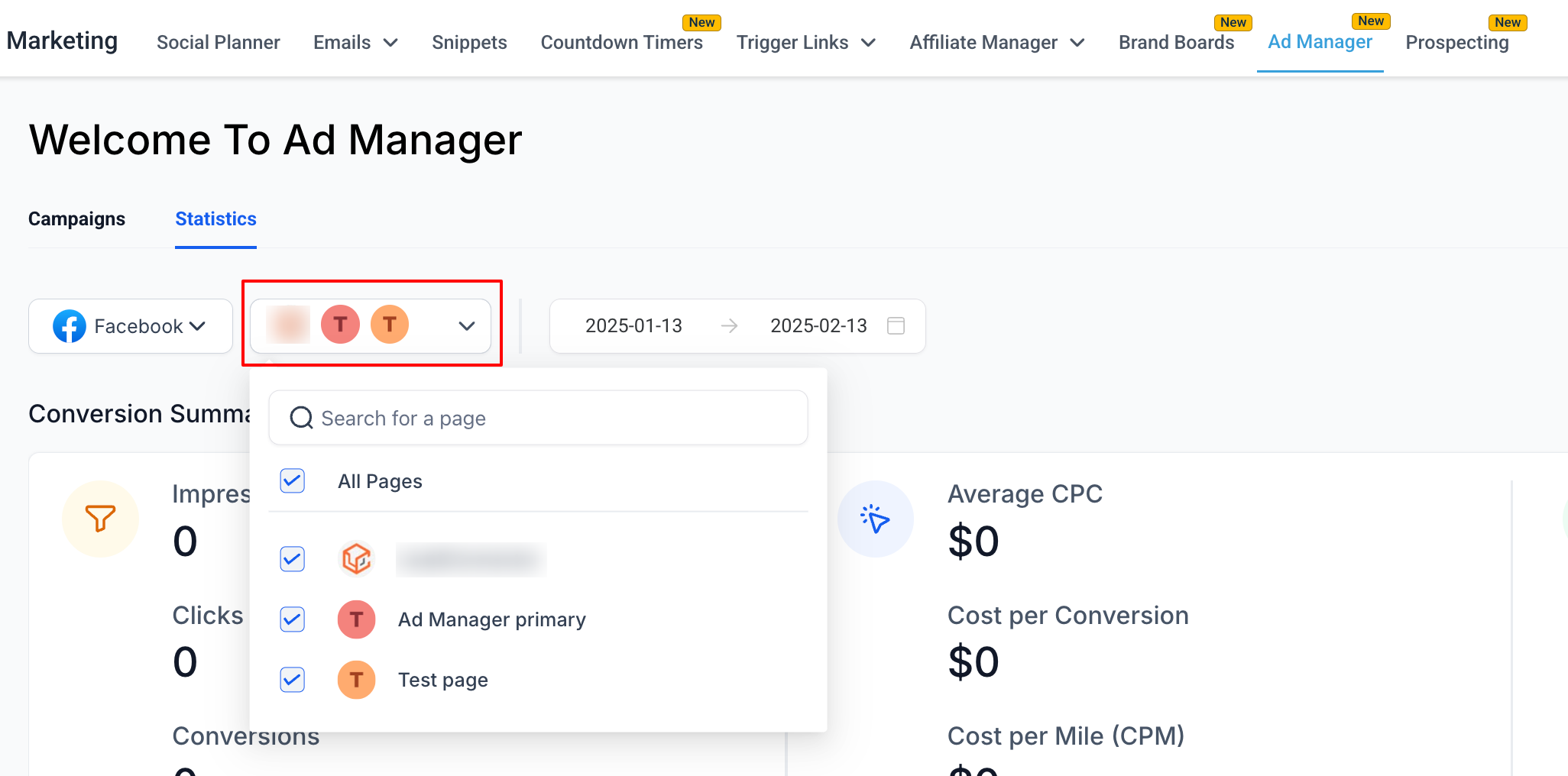
Everything remains the same for Facebook as we see for Google above, just the addition of another page selector filter is added which helps you further narrow down your statistics view to the campaigns published on specific pages on Facebook.
The existing campaign details table is customisable by selecting which columns to show, users can choose which metrics makes sense to them while visualising the campaign performance and others can be unchecked. This will result in only those columns which are relevant to the user to be shown in the table for clear and crisp data analytics.
For Meta campaigns, you can also analyze results at theAd SetandAdlevel to support deeper optimization.
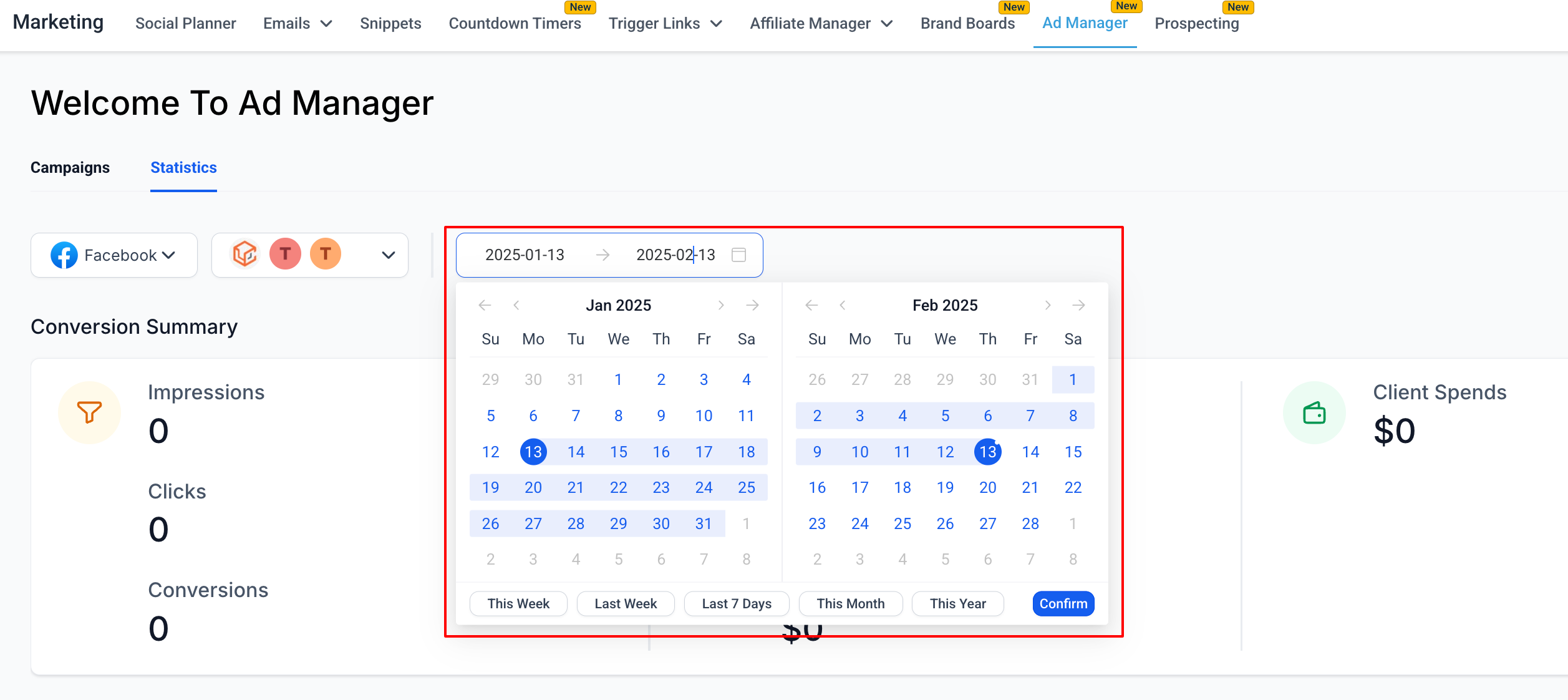
Note:A date filter can be added by selecting the date range and the statistics within that date range will be shown for all the campaigns present in the list.
Note:A page filter can be added by the user enabling them to select a page from the dropdown and the statistics of the campaigns published on the selected page(s) will be shown.
How to See the Statistics of an Individual Campaign to Measure its Performance?
On the statistics tab, a table is shown giving the campaign performance details based on different metrics like clicks, ROI, CPC, CTR, etc.
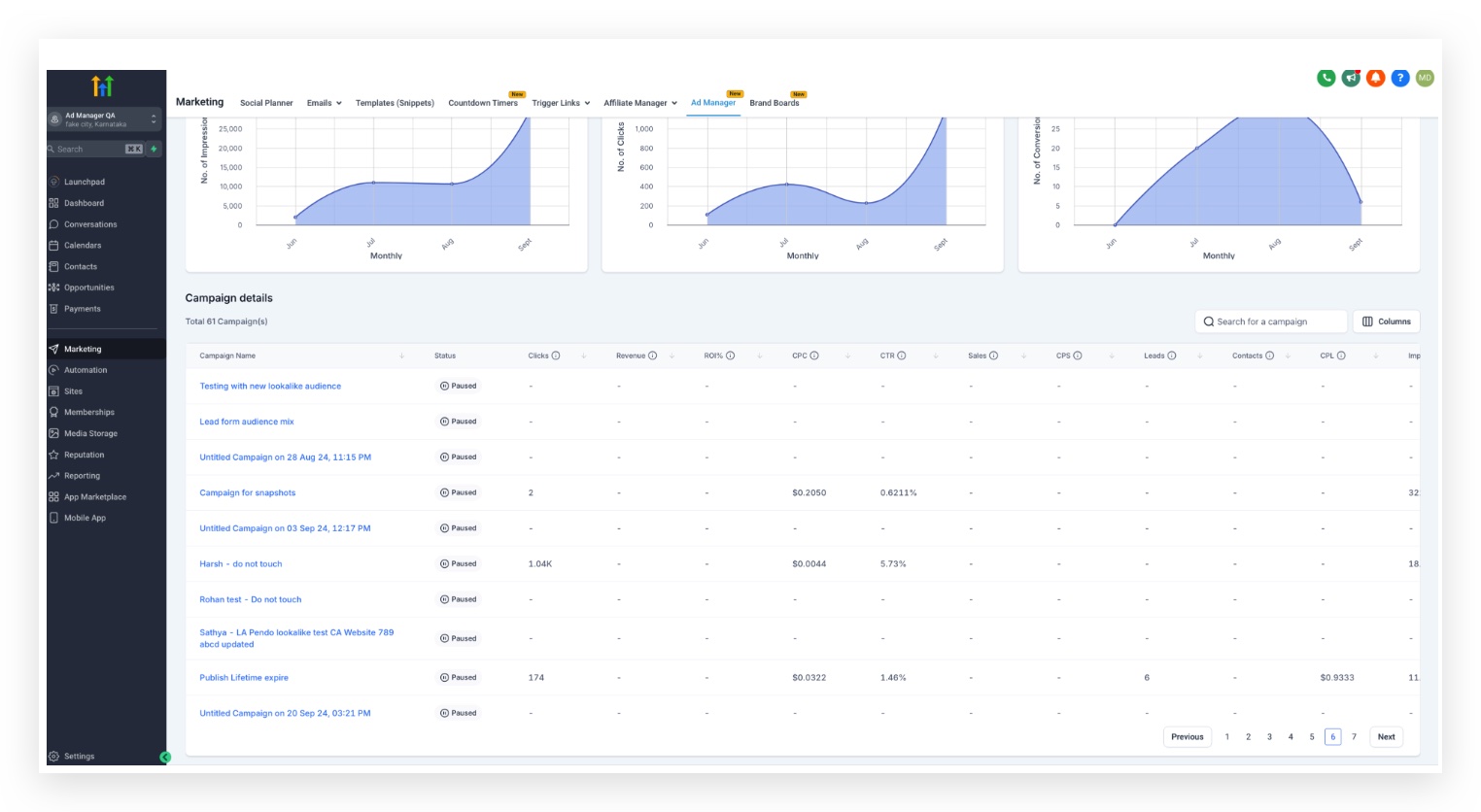
User clicks on the individual campaign name and a new page with stats specific to the ad campaign selected will be shown.
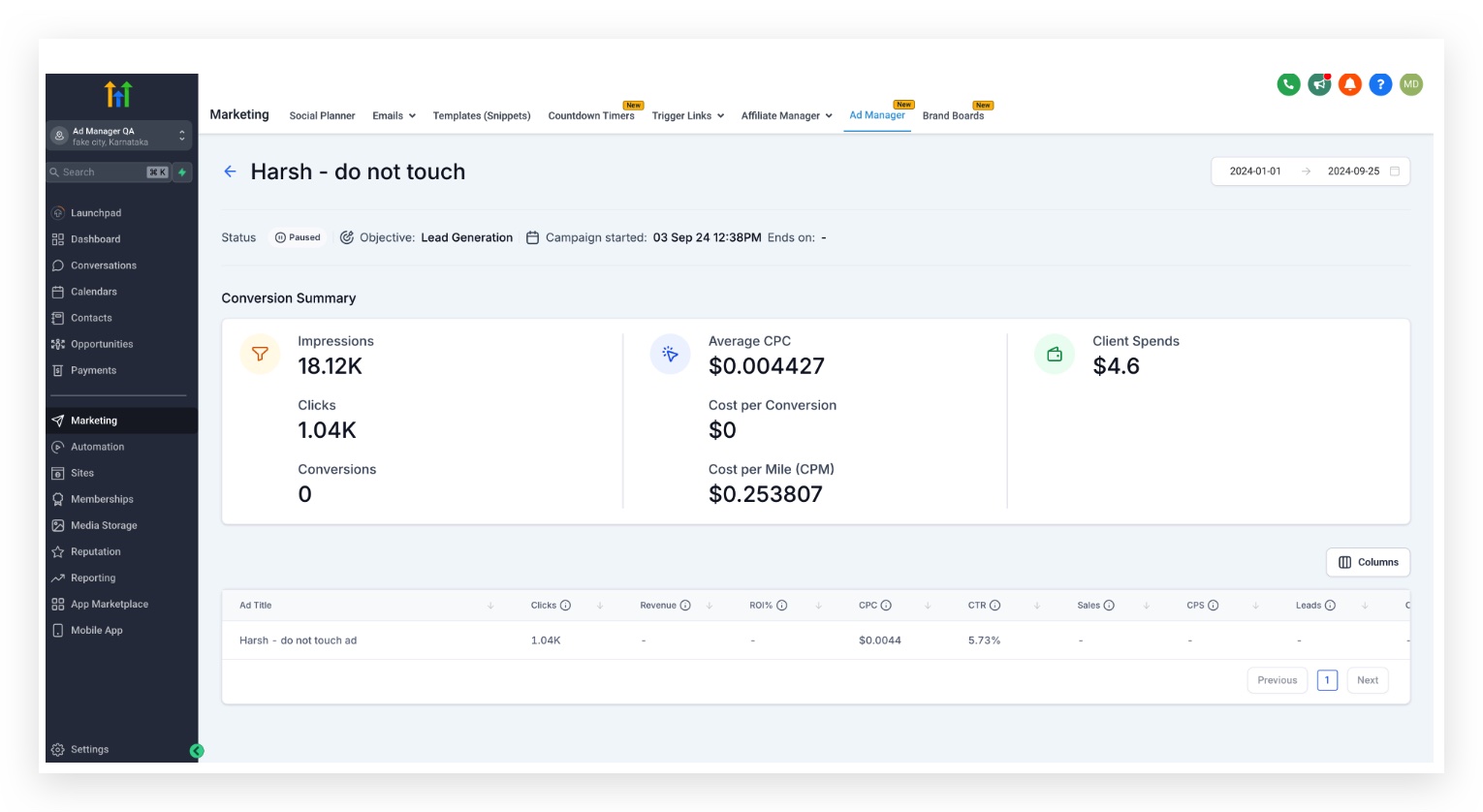
The columns of individual campaign details metric table is also customisable by selecting which metric columns to show in the individual ad campaign table when visualising the campaign performance.
Meta: view performance by ad set and ad
ForMetacampaigns, Statistics also supports performance visibility beyond the campaign level. After you open a campaign, you can drill intoad setandadperformance to identify which audiences and creatives are driving results.
Note:Date filter exists for individual campaigns as well to see the stats of this campaign only within the defined date range.
How to See & Save Leads and Sales Details of my Campaigns?
If leads or sales values for any campaign is greater than 0, then an icon is shown next to the respective number.
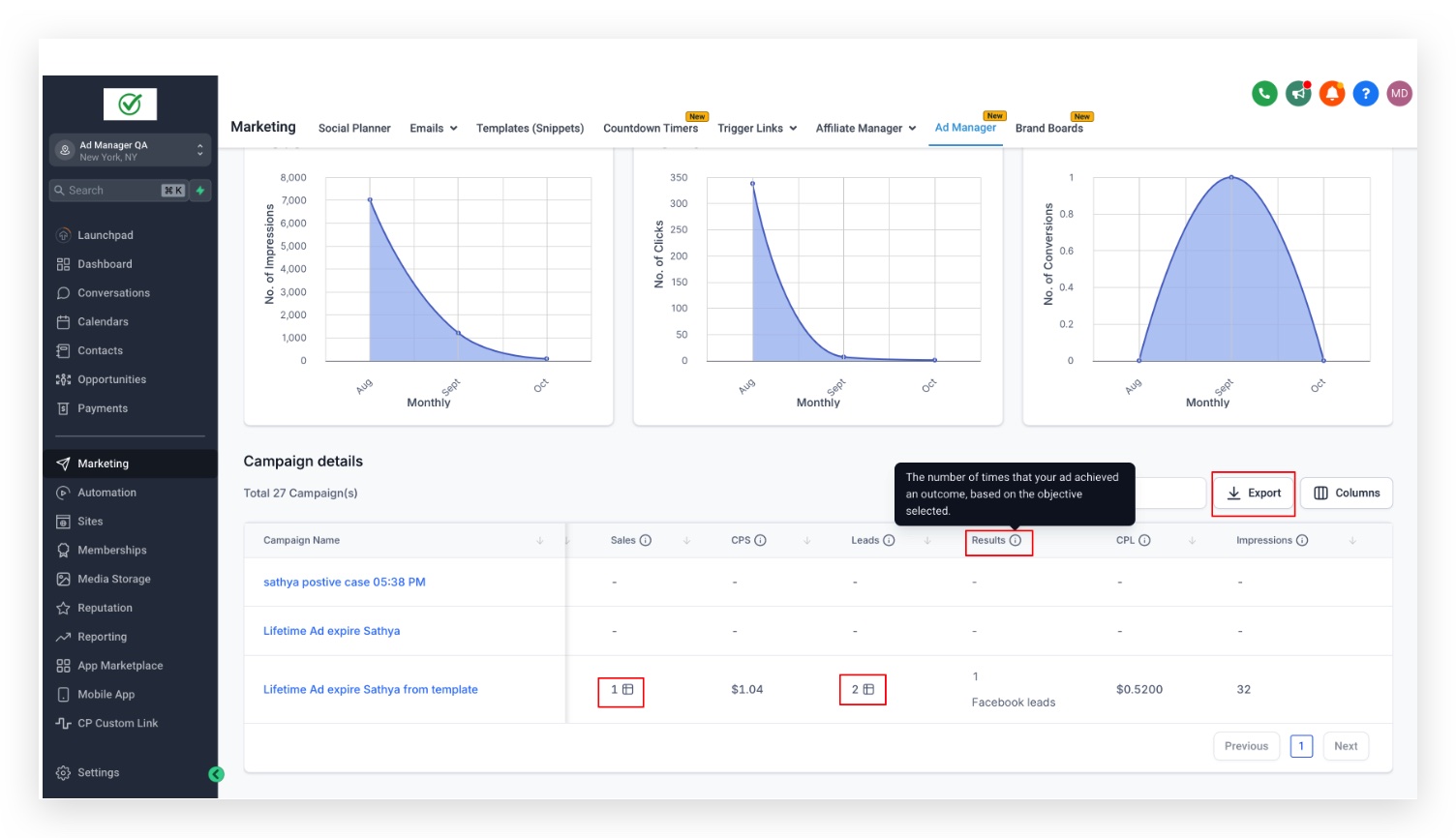
On click of the leads or sales icon, a modal opens up showing the respective 'Leads' and 'Opportunities Closed' details.

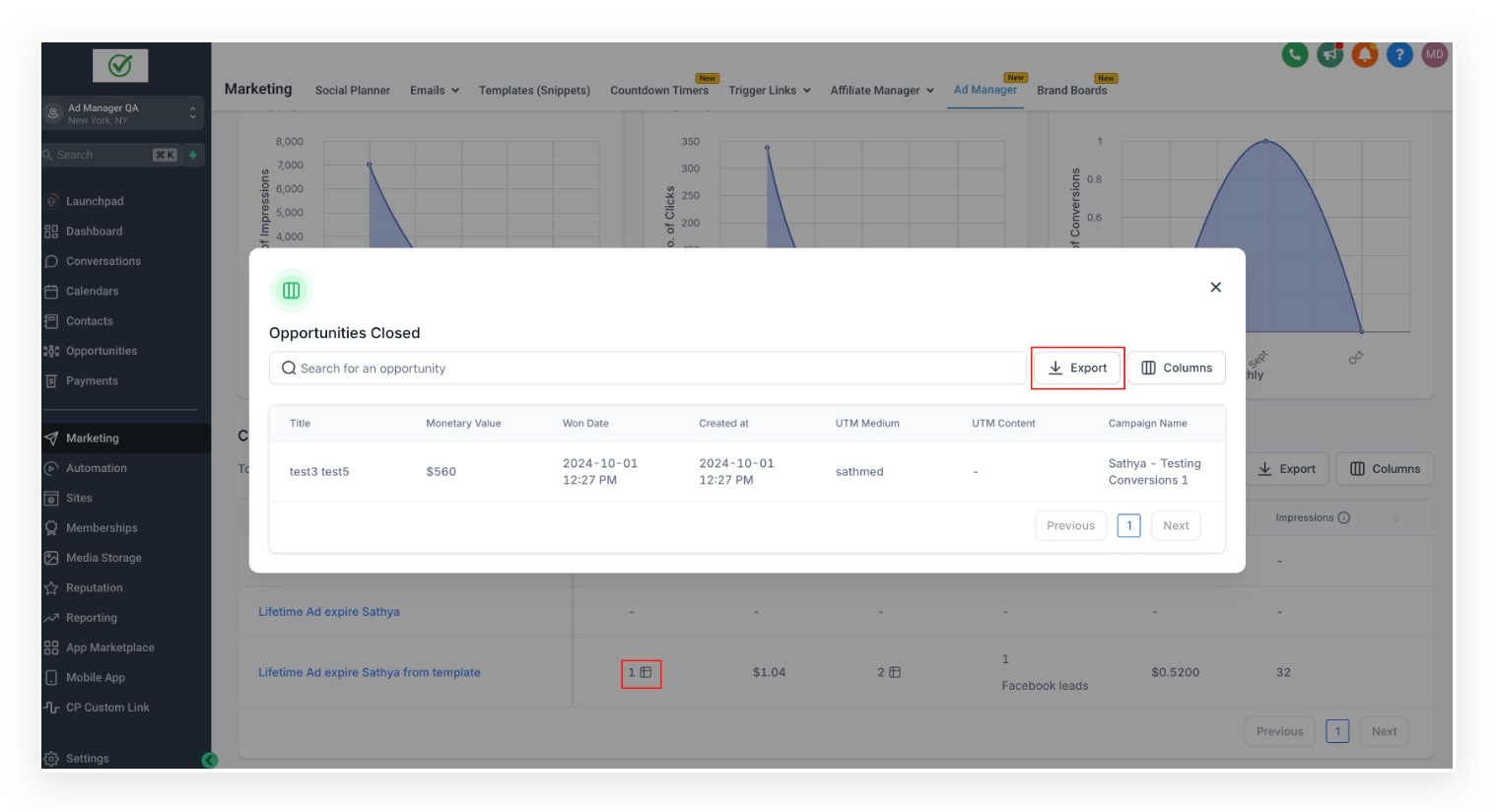
Option to export both the 'leads' and 'opportunities closed' data as a .csv exists by clicking on the 'Export' button.Functionality to export campaign data as a .csv file by clicking on the 'Export' button is added to all campaigns and individual campaign table for users to download the metrics data.
What are the Different Metrics that are Shown in the Tabular Form?
The various parameters which are essential to understand how an ad campaign is performing are shown in a tabular form against each campaign. It is crucialfor advertisers to measure, analyse, and optimise their advertising campaigns, ultimately driving better results and maximising return on investment.
- Clicks: The total number of times users have clicked on your ad. This metric helps gauge interest in your offer.
- Revenue: The total income generated from your ad campaign, often measured through sales or conversions attributed to the ad.
- ROI%: Return on Investment is a percentage that measures the return on your advertising spend.
- CPC: Cost per Click is the average amount you pay for each click on your ad.
- CTR: Click-Through-Rate is the percentage of people who clicked on your ad after seeing it.
- Sales: The total number of purchases made as a result of the ad campaign. This metric directly correlates to the success of sales-focused campaigns.
- CPS: Cost per Sale is the average cost incurred for each sale generated through the ad. It’s calculated by dividing total ad spend by the number of sales.
- Leads: The number of potential customers who have shown interest in your product or service, typically by submitting their contact information.
- Results:The number of times that your ad achieved an outcome, based on the objective selected.
- CPL: Cost per Lead is the average cost of acquiring a lead.
- Impressions: The total number of times your ad was displayed to users, regardless of whether it was clicked.
- Spend: The total amount of money spent on the ad campaign. This includes all costs associated with running the ads.
- Reach: Displays the number of unique users who saw your ad at least once.
- Frequency: Indicates how often your ad was shown to each unique user (calculated as Impressions/Reach).
Frequently Asked Questions
Q: What key metrics can I track in the Ad Manager?In Ad Manager, you can track various metrics such as impressions, clicks, conversions, click-through rate (CTR), cost per click (CPC), and return on ad spend (ROAS), among others.
Q: How often are the campaign statistics updated?Campaign statistics are updated in real-time, allowing you to monitor performance and make adjustments as needed.
Q: Can I filter statistics by specific time periods?Yes, you can filter statistics by custom date ranges, allowing you to analyze campaign performance over specific periods.
Q: What should I do if my ad performance is below expectations?If your ad performance is lacking, consider adjusting your targeting, reviewing your ad creative, or testing different ad formats. Utilize the statistics to identify areas for improvement.
Q: How can I compare the performance of multiple ad campaigns?You can compare the performance of multiple ad campaigns by using the comparison feature in the Ad Manager, which allows you to view key metrics side by side.
Q: Is there a way to export the campaign statistics?Yes, you can export your campaign statistics to a CSV file for further analysis or reporting purposes.
Q: What do I do if I notice discrepancies in the data?If you notice discrepancies in your data, first check the filtering settings. If issues persist, contact HighLevel support for assistance in troubleshooting.
Related Articles
- Connect Facebook with Ad Manager
- Overview of Ad Manager
- How to create a Meta Business Manager and Ad account?
- Setting a Facebook page as Default for Ad Manager