
Como criar uma Campanha de Afiliados
Creating your affiliate campaign has never been easier! Whether you're new to affiliate marketing or a seasoned pro, our platform simplifies the process with its multi-tier support, customizable commissions, direct affiliate assignments, and more. Follow this guide to get your campaign up and running and start earning commissions with just a few clicks.
TABLE OF CONTENTS
- Step-by-Step Guide to Creating an Affiliate CampaignStep 1: Start by Clicking the "Add" ButtonStep 2: Choose Your Campaign SourceStep 3: Configure Source DetailsStep 4: Review Your Product ListStep 5: Set Default CommissionStep 6: Customize Product-Level Commissions (Optional)Step 7: Enable Multi-Tier CommissionsStep 8: Configure Tier-Specific CommissionsStep 9: Add a Campaign Description (Optional)Step 10: Assign Affiliates DirectlyStep 11: Adjust Additional SettingsStep 12: Publish or Save as Draft
- Step 1: Start by Clicking the "Add" Button
- Step 2: Choose Your Campaign Source
- Step 3: Configure Source Details
- Step 4: Review Your Product List
- Step 5: Set Default Commission
- Step 6: Customize Product-Level Commissions (Optional)
- Step 7: Enable Multi-Tier Commissions
- Step 8: Configure Tier-Specific Commissions
- Step 9: Add a Campaign Description (Optional)
- Step 10: Assign Affiliates Directly
- Step 11: Adjust Additional Settings
- Step 12: Publish or Save as Draft
- ⚠️ Changing the Source in an Existing Campaign
- What's Next:
Step-by-Step Guide to Creating an Affiliate Campaign
Step 1: Start by Clicking the "Add" Button
Navigate to theCampaignpage and click the "+ Add" button to initiate the creation of your campaign.

Step 2: Choose Your Campaign Source
Select the source for your campaign, such as a funnel, website, or store where your products are listed.
Step 3: Configure Source Details
You can also choose the landing page where potential customers will land. Once set, the system will generate a default campaign URL. This URL includes a unique affiliate link, where the placeholder<
<>


Please Note:Currently, only funnels, websites, and stores support product sales via affiliate campaigns. However, you can also track leads and pay affiliates for generating leads through forms, surveys, and calendars.Learn more here.Landing page selection is just used to set where the potentials customers will land. Please note that tracking will be done source wide not just on the landing page
Step 4: Review Your Product List
Review the products associated with your selected source. Add or remove products to ensure that only commission-eligible items are listed.

Step 5: Set Default Commission
Establish a default commission for your campaign, choosing either a flat fee or a percentage of the product price.

Step 6: Customize Product-Level Commissions (Optional)
Optionally, set specific commissions at the product level to tailor payouts based on individual product prices.

Step 7: Enable Multi-Tier Commissions
Access theAdvanced Commissionssettings to enable multi-tier commissions. You can support up to 7 tiers for more intricate commission structures.Learn more here.

Step 8: Configure Tier-Specific Commissions
Assign commissions to each tier by either applying the default rate or customizing them for each level based on performance.

Step 9: Add a Campaign Description (Optional)
Add a campaign description that outlines its purpose to make it more attractive to potential affiliates.

Step 10: Assign Affiliates Directly
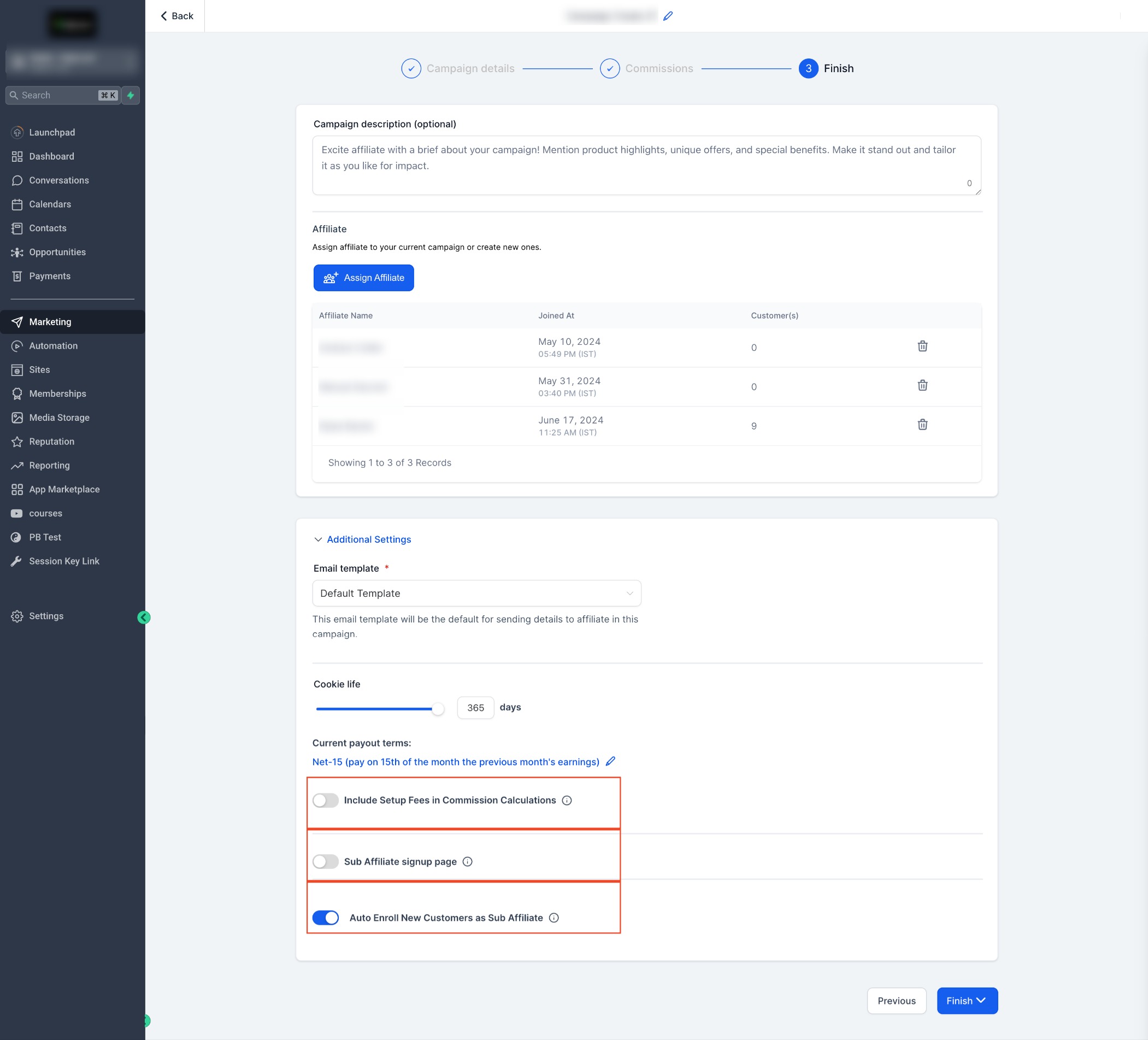
Review affiliate details, such as their join date and total affiliate count, before directly assigning them to your campaign.

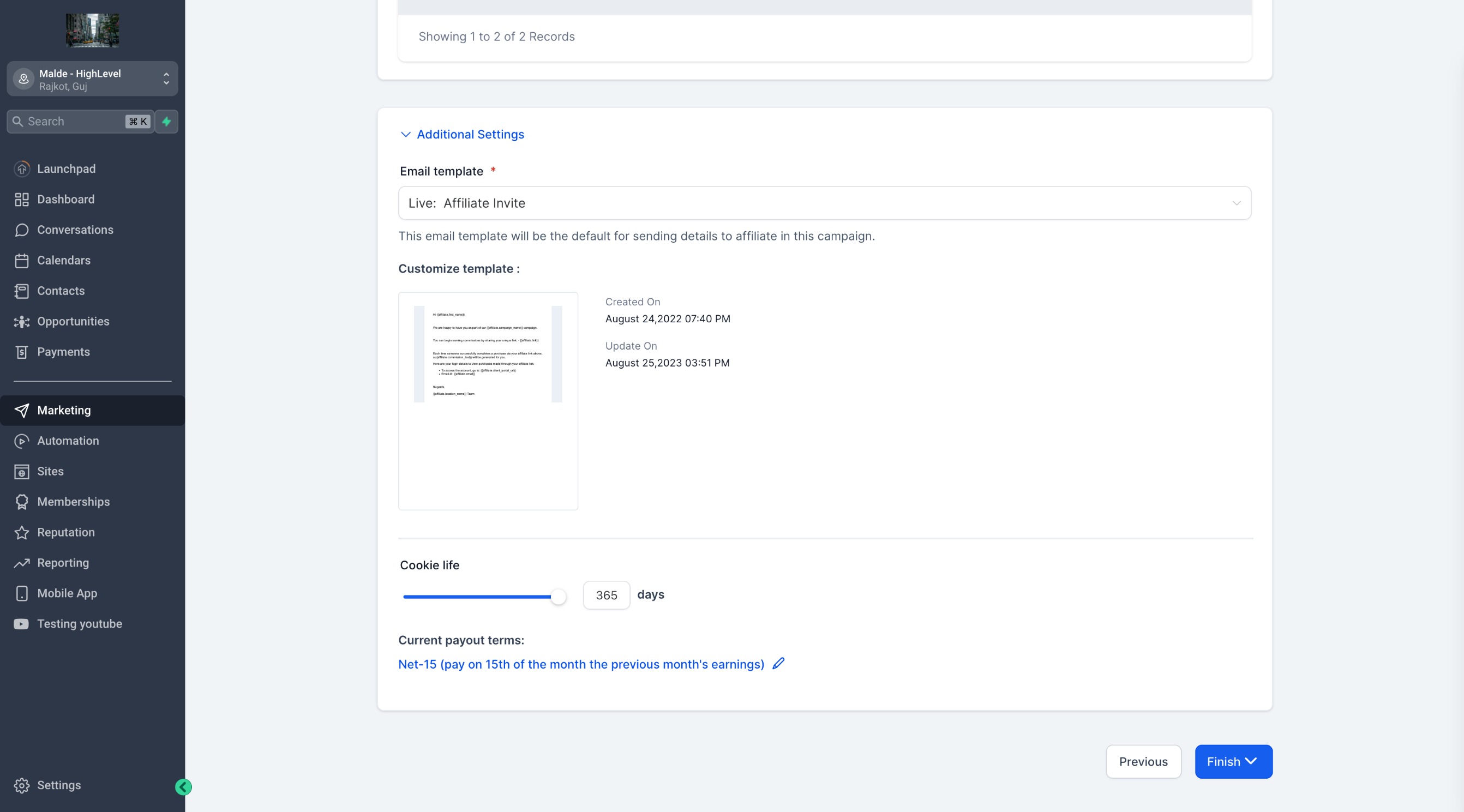
Step 11: Adjust Additional Settings
Tailor your campaign further with options such as:
- Email templates for affiliate onboarding
- Cookie duration for tracking affiliate activity
- Payout terms
- Including setup fees in commission calculations
- Enabling sub-affiliate signups
- Auto-enrolling new customers as sub-affiliates
Step 12: Publish or Save as Draft
Once satisfied with your campaign setup, you can choose toPublishit immediately orSave as Draftfor further editing.
Congratulations!Your affiliate campaign is now live and ready to drive results. With these intuitive tools, you’re equipped to grow your business and reward your affiliates for their contributions.
⚠️ Changing the Source in an Existing Campaign
You can nowedit the sourceof an affiliate campaign even after it’s published — for example, if the funnel, course, or website it was linked to has been deleted or changed.
Important:When you change the source, theaffiliate referral URL will also change.Theold URL will stop tracking, and only the new one will work going forward.
What You Should Do:
- After changing the source,inform your affiliatesthat their referral links have changed
After changing the source,inform your affiliatesthat their referral links have changed
- Encourage them toupdate any shared linksimmediately to avoid missing out on commissions
Encourage them toupdate any shared linksimmediately to avoid missing out on commissions
- Note: All other campaign settings and past performance data will remain unaffected
Note: All other campaign settings and past performance data will remain unaffected
By making sure your affiliates are aware of this change, you can avoid confusion and unnecessary support tickets about links not working.
What's Next:
- How to Set Up Multi-Tier Commissions
- How to track leads from an Affiliate Campaign
- How to Set Up and Pay Affiliates for Generating Leads
- FAQs for Affiliate Campaigns