
Utilizando as Notas do HighLevel de Forma Eficiente para Gerenciar Contatos, Oportunidades e Registros de Empresas
HighLevel Notes help teams capture important details, track updates, and keep everyone aligned when working with contacts, opportunities, and company records. This article explains how Notes work in each module, highlights their benefits, and provides step-by-step guidance on adding, searching, filtering, and viewing notes. By the end, you’ll know how to use Notes to improve collaboration and maintain accurate records.
TABLE OF CONTENTS
- What are Notes in HighLevel?
- Key Benefits of NotesNotes in Contacts ModuleNotes in Opportunities ModuleNotes in Companies Module
- Notes in Contacts Module
- Notes in Opportunities Module
- Notes in Companies Module
- How to Use Notes
- Frequently Asked Questions
What are Notes in HighLevel?
Notes in HighLevel are an internal tool for documenting and tracking important information related to contacts, opportunities, and companies. They provide a centralized place for team members to log updates, reminders, or context that may be useful for future reference. Notes are strictly forinternal use—clients cannot view them in their portal or through external communication.
Key Benefits of Notes
Using Notes effectively helps businesses maintain context and improve collaboration. Here are the main benefits:
- Centralized Recordkeeping: Keep important details in one place for easy reference.
- Internal Collaboration: Share context among team members without exposing it to clients.
- Improved Tracking: Document key updates like calls, payments, or follow-ups.
- Flexible Organization: Add, search, filter, and view notes across contacts, opportunities, and companies.
Notes in Contacts Module
Each contact in HighLevel has its own Notes section where internal users can document updates specific to that contact.
- Notes are tied directly to the selected contact.
- You can add, search, and filter notes within the contact’s profile.
- Useful for logging call summaries, payment confirmations, or client preferences.
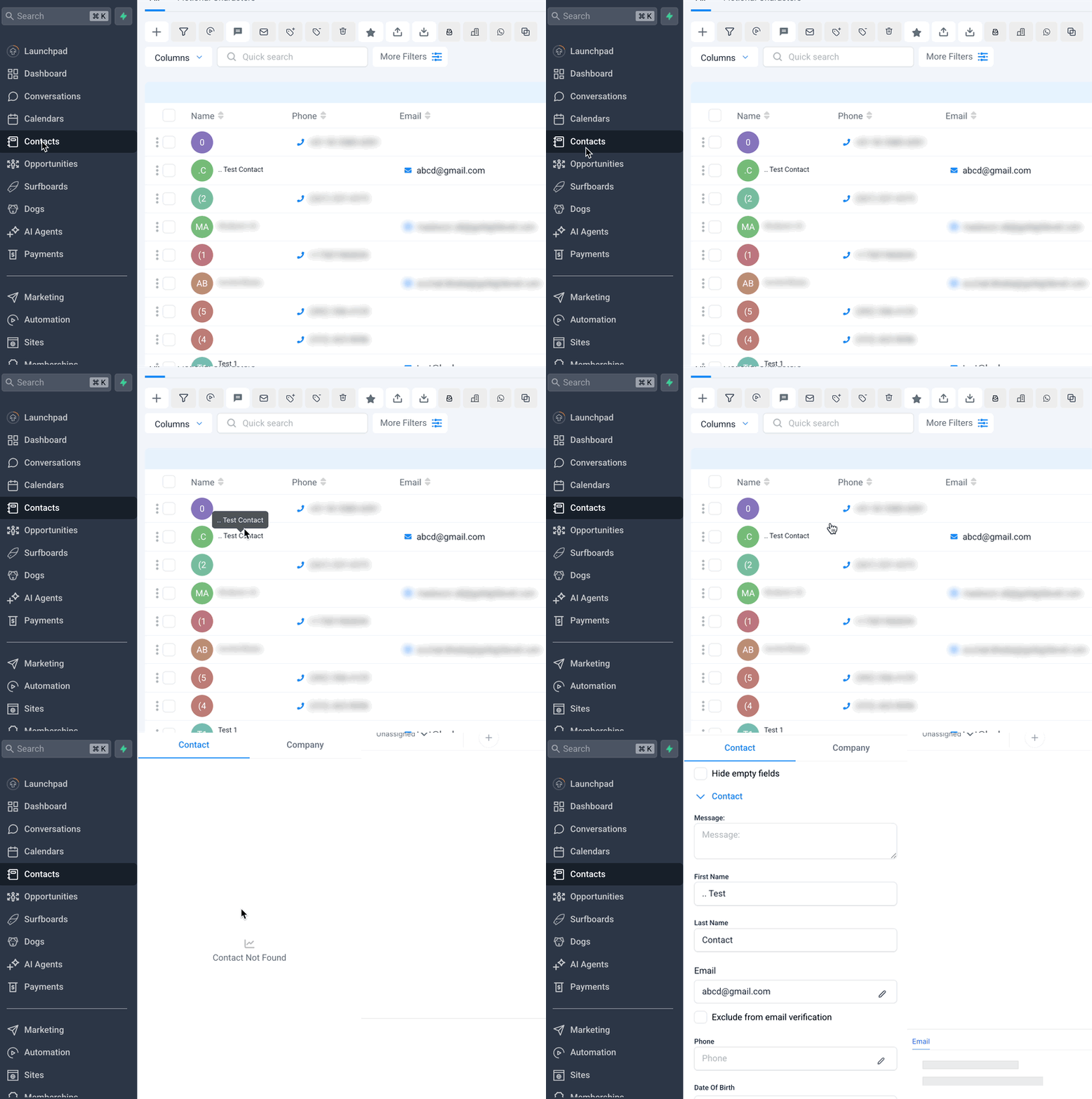
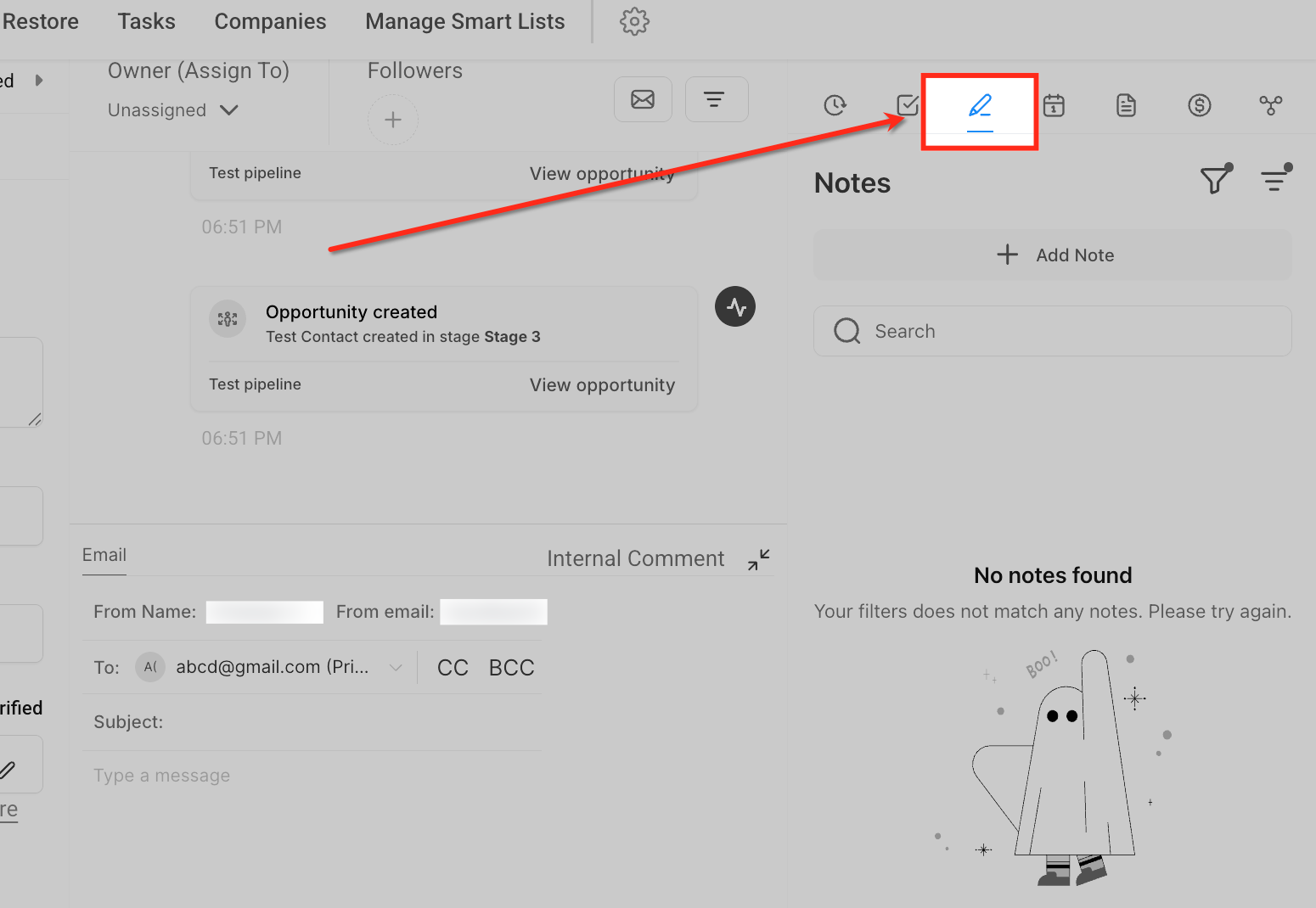
Access the Notes Section from Contacts
From within theContacts module, click theNotes icon(pen and paper symbol) at the top of the contact’s record. This opens theNotes panel, where you can create, view, and manage notes related to that specific contact.
Notes in Opportunities Module
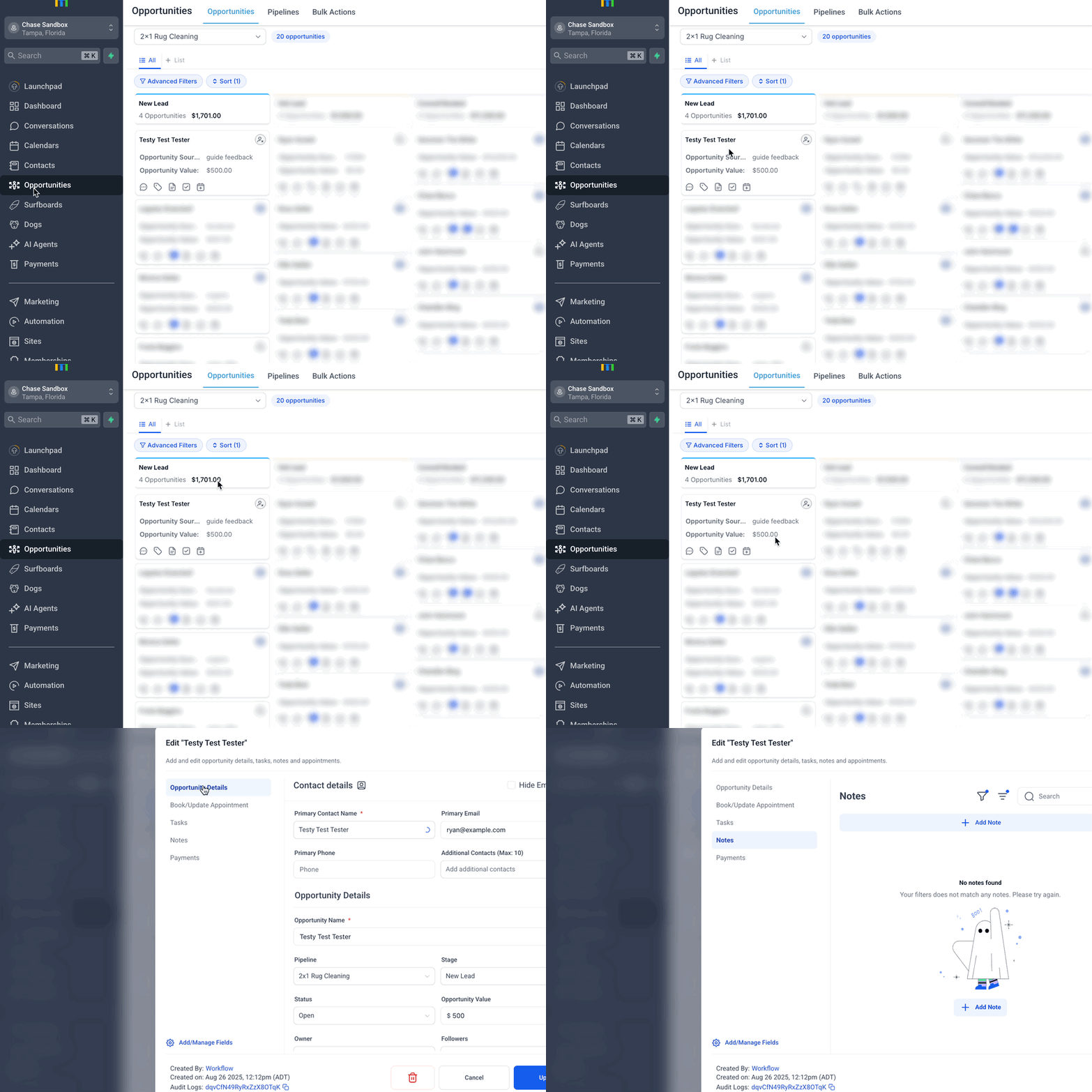
Opportunities provide a consolidated view of notes connected to the primary contact and related contacts.
- By default, you will see notes associated with theprimary contactof the opportunity.
- Filters allow you to include additional contacts’ notes linked to the same opportunity.
- Useful for sales teams who need visibility into all interactions tied to a deal.
Notes in Companies Module
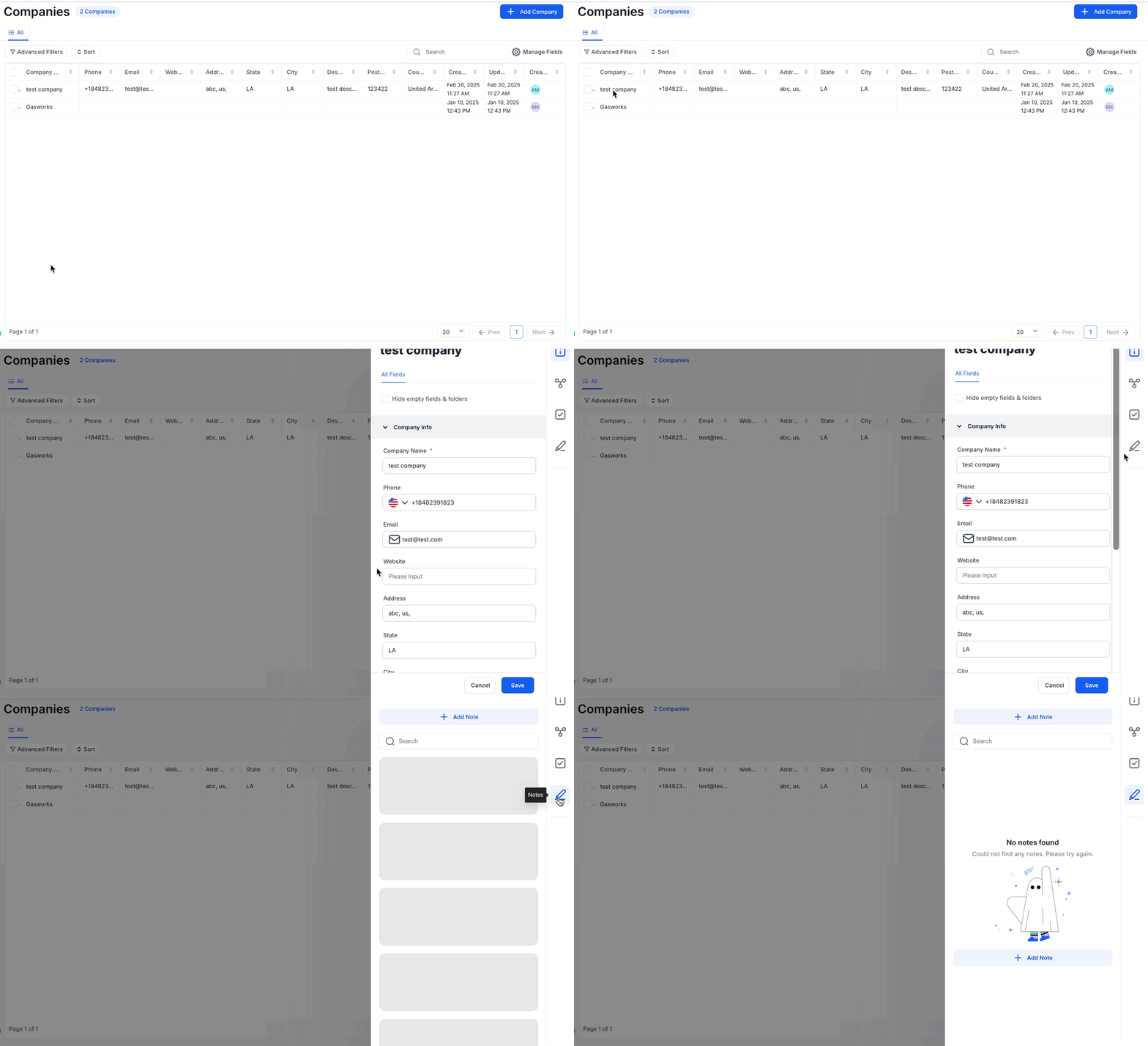
The Companies module aggregates notes across all contacts associated with a company.
- The Notes section shows discussions and updates across multiple linked contacts.
- This provides a company-wide perspective rather than being tied to one individual.
- Ideal for account managers handling multiple stakeholders within one business.
How to Use Notes
Notes can be added, searched, filtered, and reviewed in a few simple steps.
Adding a Note
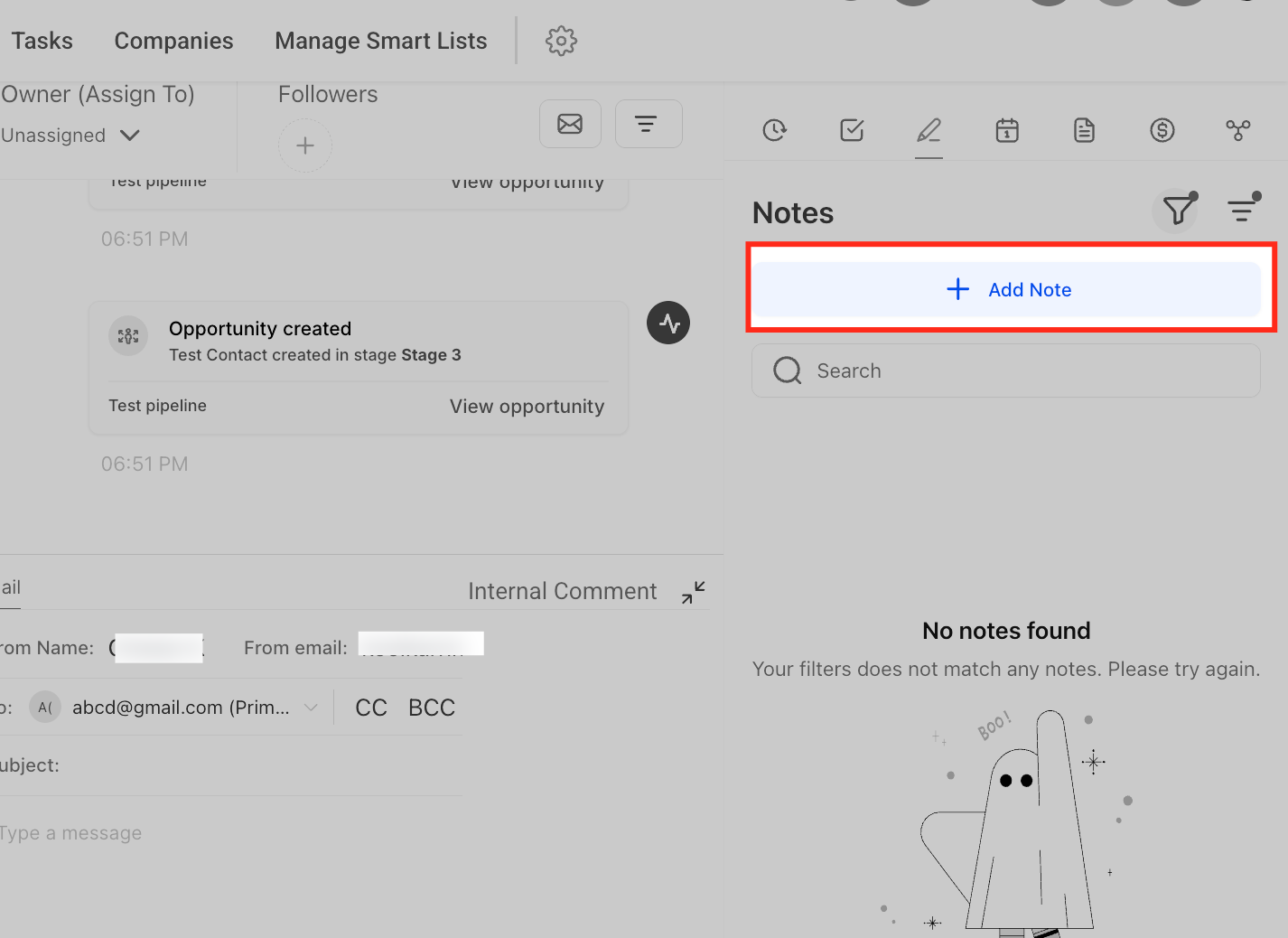
- Navigate to theNotes tabwithin a contact, opportunity, or company.
- Click+ Add Noteto create a new note.
- Enter your description and clickSave.
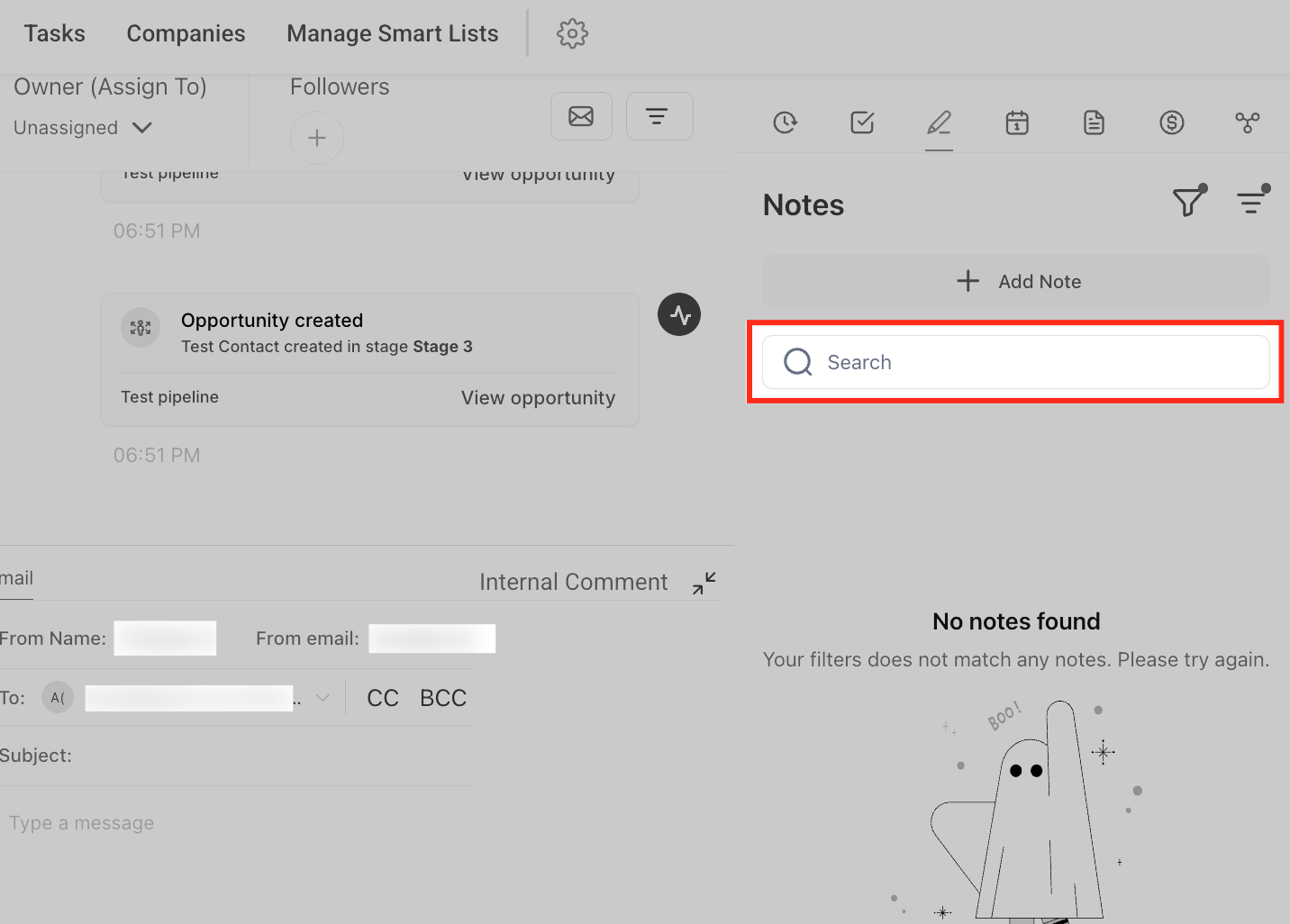
Searching for Notes
Use theSearch barin the Notes section to find entries by keywords.
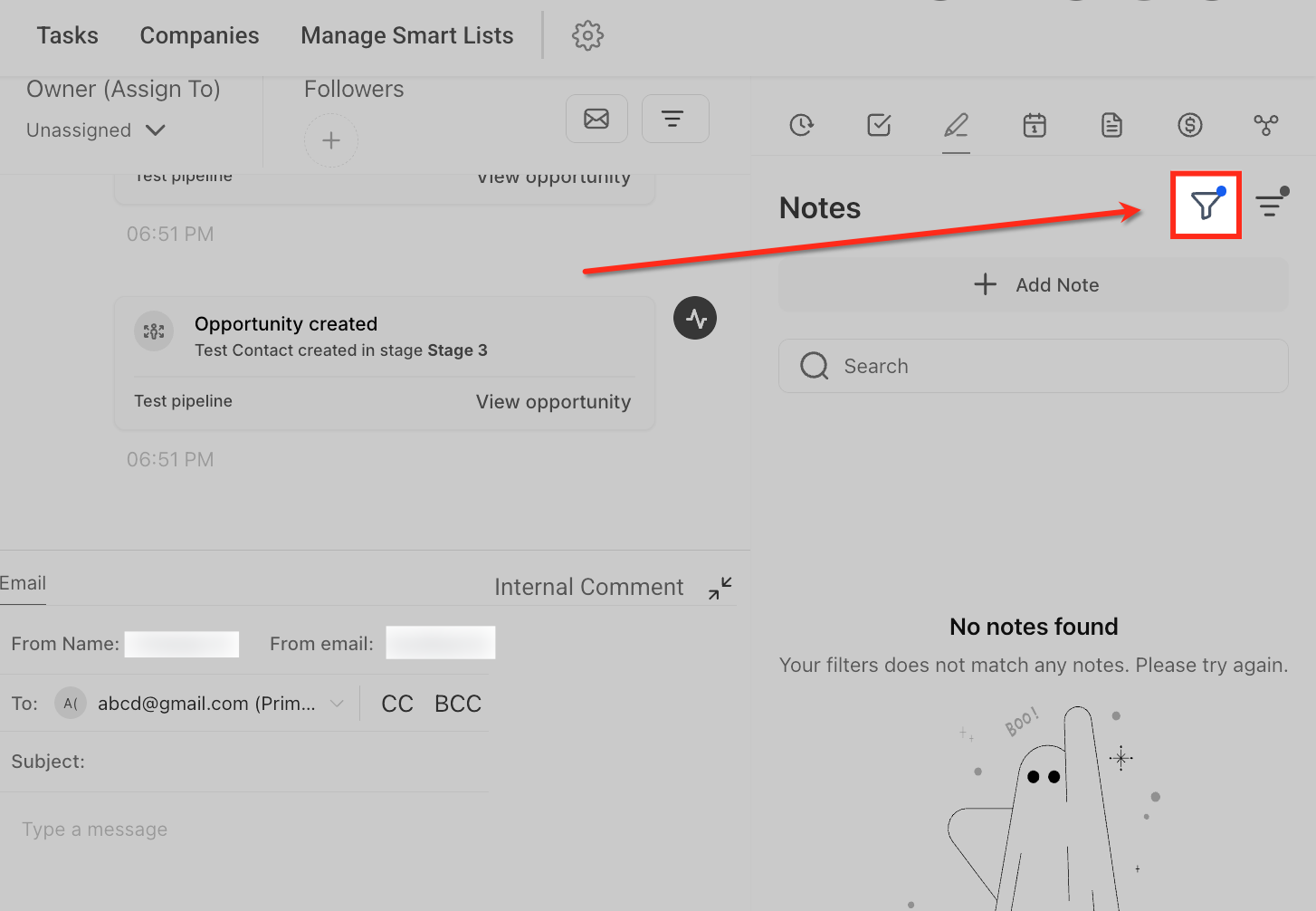
Filter Notes
Click theFilter iconin the Notes section to narrow down which notes you want to see. Filters help you quickly locate specific information without scrolling through all notes.
Available filter types:
- Contacts:Show only notes linked to a specific contact. Useful when reviewing updates or history tied to one person.
- Opportunities:Display notes related to a sales opportunity. This helps sales teams track deal-specific interactions or updates.
- Created By:Filter notes based on the team member who created them. Helpful for collaboration when multiple users manage the same contact.
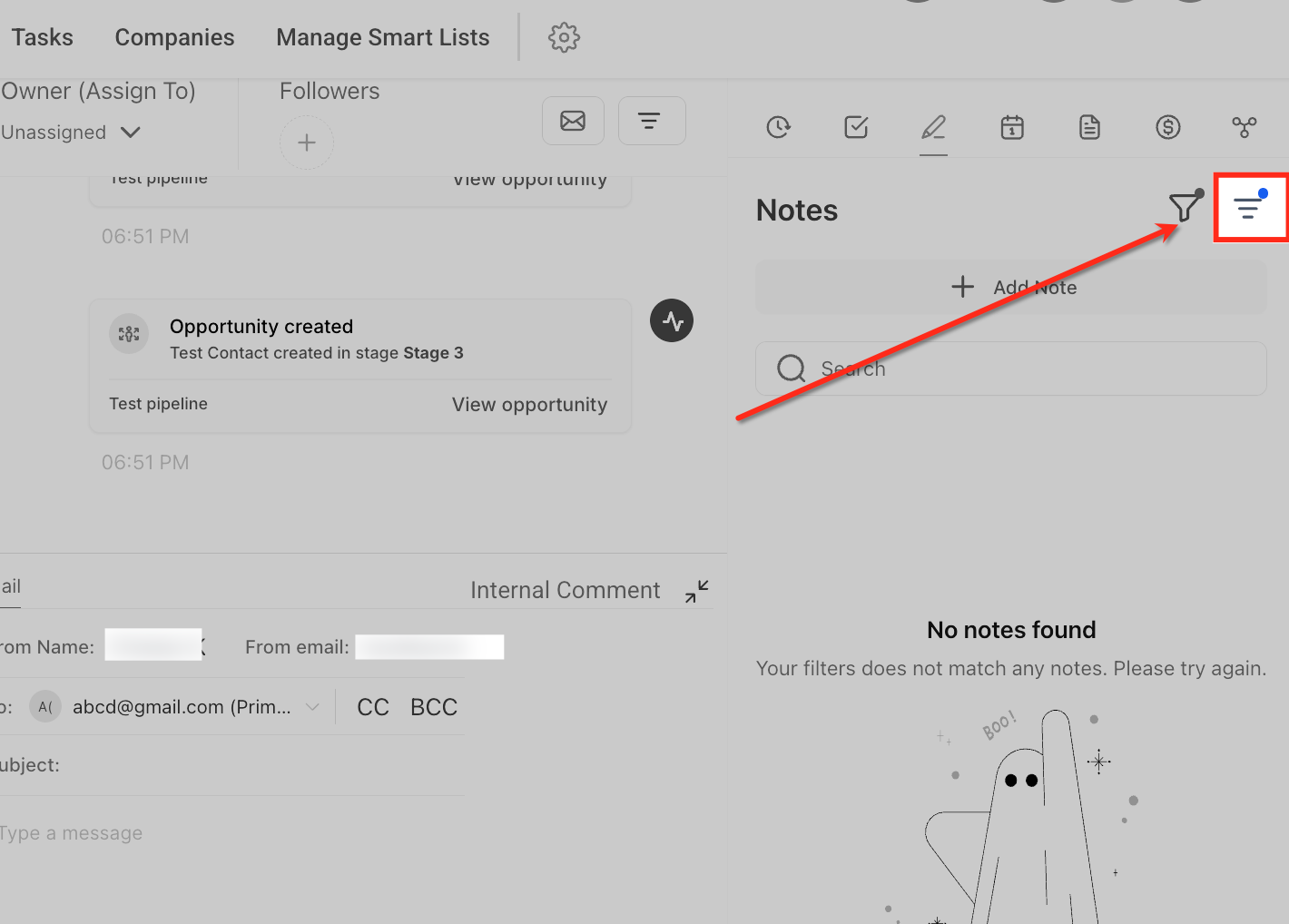
Sort Notes by Date Created
Click theSort iconin the Notes section to arrange notes based on when they were created. You can choose:
- Ascending (Oldest First):Displays notes starting from the earliest created, useful for reviewing the full history in sequence.
- Descending (Newest First):Displays the most recent notes at the top, making it easier to see the latest updates quickly.
Frequently Asked Questions
Q: Can contacts see the notes added to their record?No. Notes are for internal use only. Clients cannot view notes in their portal, emails, or any external communications.
Q: Who on my team can view notes?Any team member with access to the record (contact, opportunity, or company) can view notes. Visibility may depend on user roles and permissions.
Q: Can I export or download notes for reporting?Notes cannot be directly exported as a standalone report. However, they can be included when exporting records (such as contacts) via the Smart Lists feature.
Q: Are notes included in automations or workflows?Notes themselves cannot trigger automations. However, actions related to the contact or opportunity (such as status updates) can be used in workflows alongside manually created notes for context.