
Como Criar um Anúncio Meta Click to Direct (CTX) para Engajamento
In this article, we will discuss in detail the steps to create a Meta Ad for Engagement objective with addedexceptions and limitationsregarding how the ad and conversation form function depending on the availability of different messaging apps.
TABLE OF CONTENTS
- How to Create a Meta Ad for Engagement with Messaging Apps as the Conversion LocationStep 1: Access Ad ManagerStep 2: Choose the Facebook page and Instagram accountStep 3: Choose the Ad ObjectiveStep 4: Choose Messaging Apps for ConversationsWhat If a Messaging App is not selected?Step 5: Create or Use a Conversation formStep 6: Select PlacementsStep 7: Create Your AdStep 8: Budget & ScheduleStep 9: Set Up the AudienceStep 10: Review and Publish
- Step 1: Access Ad Manager
- Step 2: Choose the Facebook page and Instagram account
- Step 3: Choose the Ad Objective
- Step 4: Choose Messaging Apps for ConversationsWhat If a Messaging App is not selected?
- What If a Messaging App is not selected?
- Step 5: Create or Use a Conversation form
- Step 6: Select Placements
- Step 7: Create Your Ad
- Step 8: Budget & Schedule
- Step 9: Set Up the Audience
- Step 10: Review and Publish
- Tracking & Optimisation
How to Create a Meta Ad for Engagement with Messaging Apps as the Conversion Location
Meta Ads allow businesses to drive engagement and start conversations with potential customers through messaging apps likeFacebook Messenger, Instagram Direct, and WhatsApp. This guide will walk you through setting up an ad campaign with the following specifications:
- Ad Objective:Engagement
- Conversion Location:Messaging Apps
- Performance Goal:Maximise the number of conversations
Additionally, this guide highlights theexceptionswhere the ad or conversation form may work for one messaging app but not for others.
Step 1: Access Ad Manager
- Go to sub-account > Marketing >Ad Managerprovided your onboarding is completed. (Referlinkon how to enable and resell ad manager)
- Click on+ Create Campaignto start a new campaign.
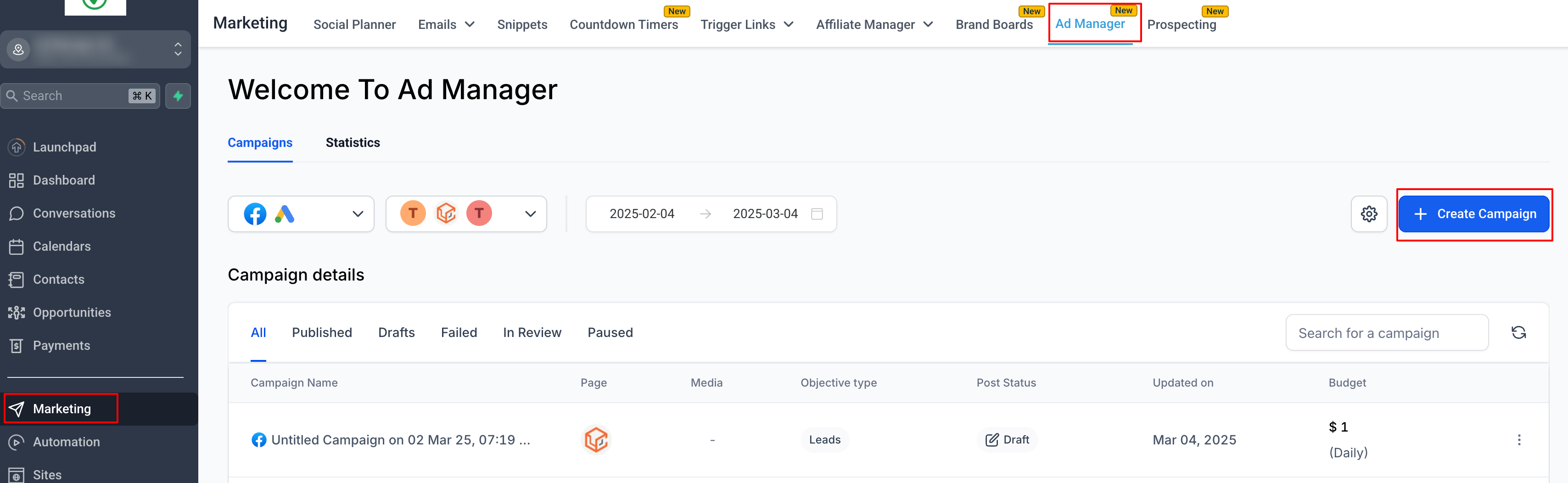
- Select Facebook Campaign and Start from scratch.
Step 2: Choose the Facebook page and Instagram account
- Select the Facebook page you want your ad to associate with and reflect your business.
- Either select an Instagram account that's connected to the selected FB page or use the Facebook page itself to showcase your ad on Instagram. Details on how to connect an Instagram account with the FB page and other important info is listed in the followinghelp article.
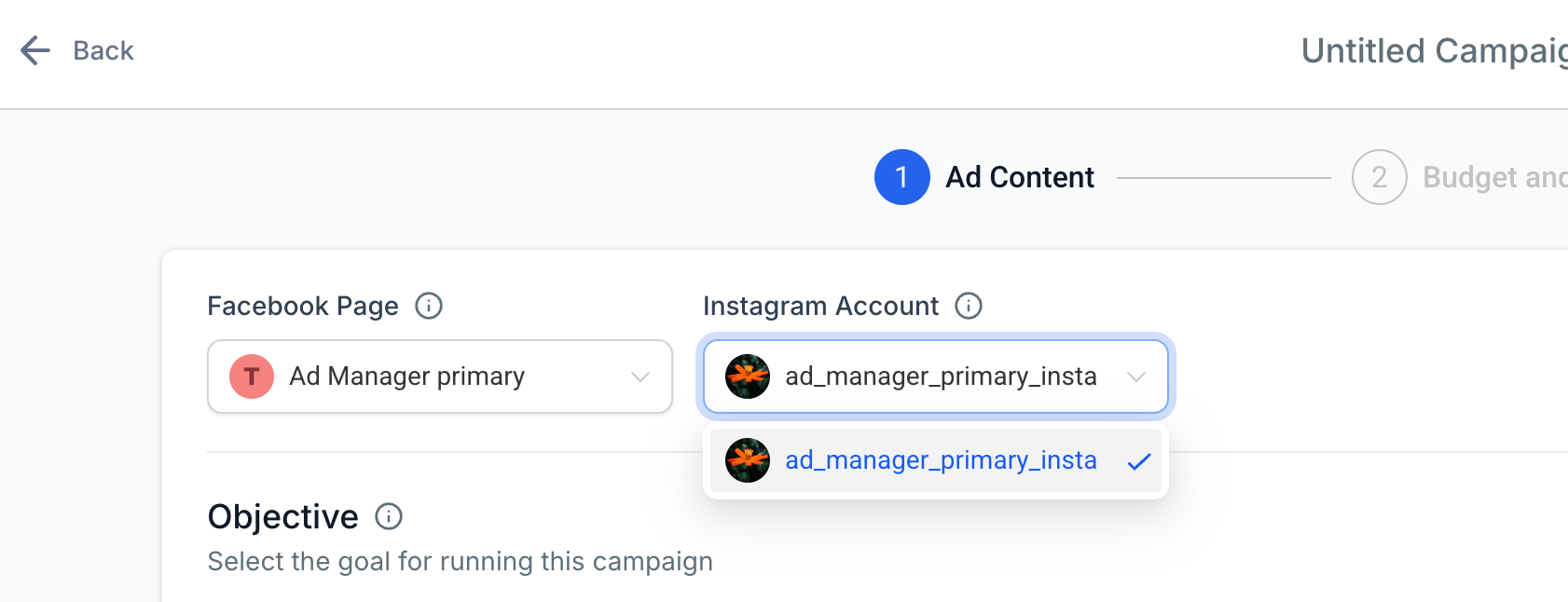
Note:Instagram messaging app will not be eligible for Click to Direct ads if there is no Insta account connected to the selected page.
Step 3: Choose the Ad Objective
- SelectEngagementas the objective.
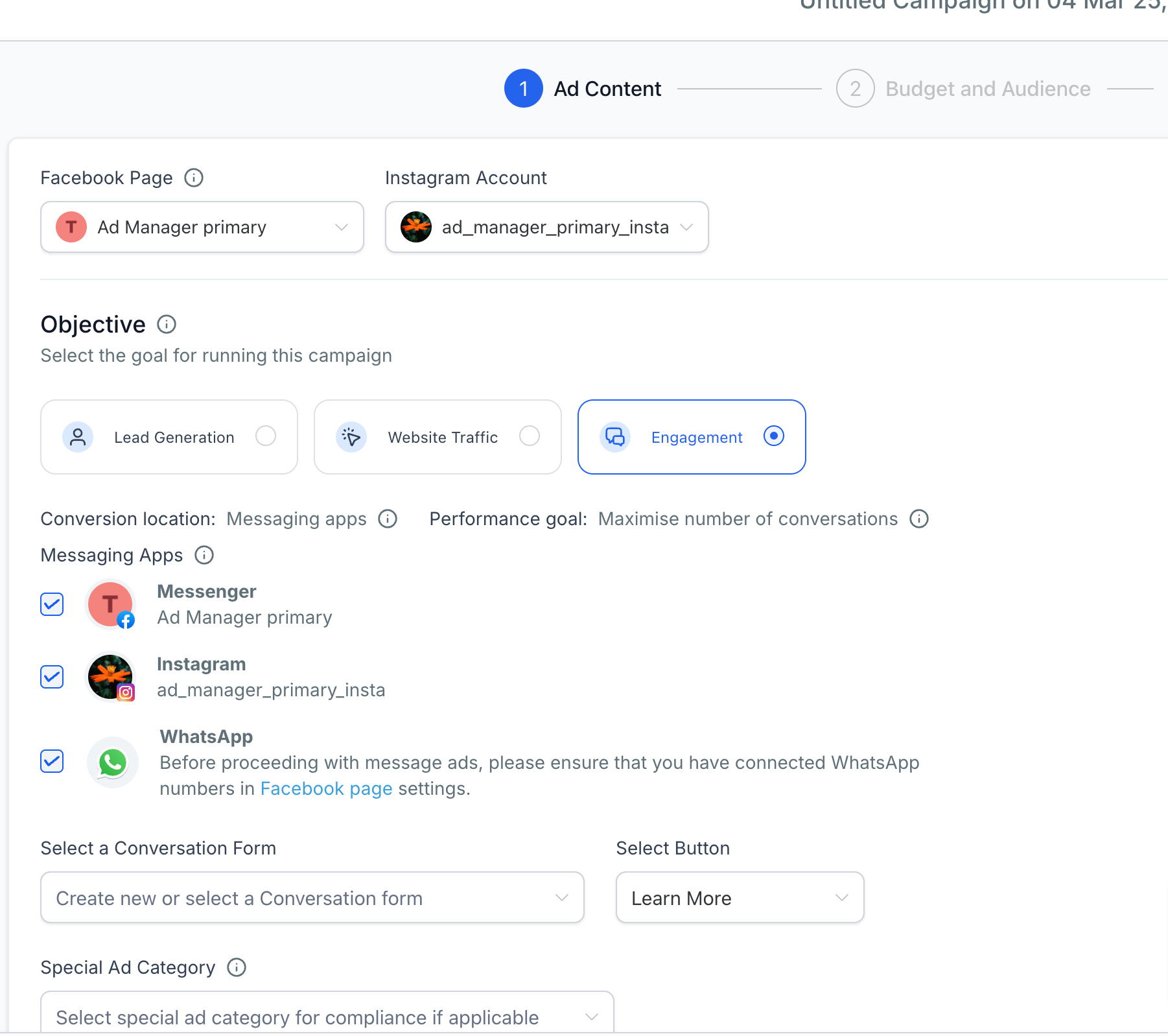
- TheConversion Locationis defaulted to be'Messaging Apps'.
- ThePerformance goalis defaulted to be'Maximise number of conversations'.This ensures Meta optimises ad delivery to encourage users to start chats with your business.
- This ensures Meta optimises ad delivery to encourage users to start chats with your business.
Step 4: Choose Messaging Apps for Conversations
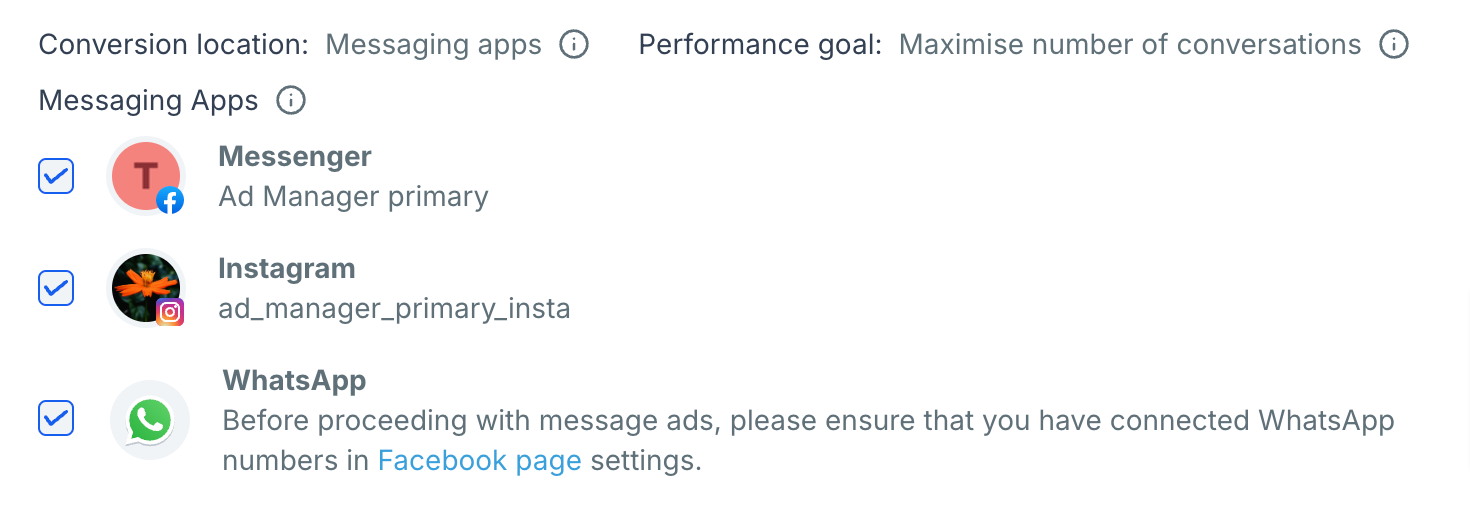
Under theMessaging Appssection, select one or more platforms where you want to receive messages:
- Facebook Messenger
- Instagram Direct -It will be active to be used only if the selected Facebook page has an Instagram account connected to it.
- WhatsApp -The WhatsApp can be used as a messaging app for a CTX ad only if you have WhatsApp numbers added to the Facebook page that's selected for the ad campaign.
What If a Messaging App is not selected?
Step 5: Create or Use a Conversation form
The details on how to create or use an already created conversation form are explained in detail in thishelp article.
Step 6: Select Placements
- Automatic Placements (Recommended): Meta will distribute the ad where it’s most likely to generate conversations.
- Manual Placements: You can select specific placements such as Facebook Feed, Instagram Feed, Stories, etc.
Step 7: Create Your Ad
- Select an Ad Format:Single Image/Video– A simple ad with one visual.Carousel– Multiple images/videos users can scroll through.
- Single Image/Video– A simple ad with one visual.
- Carousel– Multiple images/videos users can scroll through.
- Write Engaging Ad Copy:Keep it short and compelling.Highlight a strongCall-to-Action (CTA)like "Message Us Now!".
- Keep it short and compelling.
- Highlight a strongCall-to-Action (CTA)like "Message Us Now!".
- Set Up the Call-to-Action (CTA):Choose "Send Message".If multiple messaging apps are selected, Meta will optimise the best platform to message you where you're most likely to respond.
- Choose "Send Message".
- If multiple messaging apps are selected, Meta will optimise the best platform to message you where you're most likely to respond.
Step 8: Budget & Schedule
- Set aDaily BudgetorLifetime Budget.
- Choose a start and end date if needed.
- Ensure your budget aligns with your campaign goals.
Step 9: Set Up the Audience
- Choose your audience based on location, age, gender, and detailed targeting.
- UseCustom Audiencesto target existing customers or lookalike audiences to find new users.
Step 10: Review and Publish
- Double-check all settings.
- ClickPublishto launch your ad.
- Monitor performance inAd Manager Statistics.
Tracking & Optimisation
- UseMeta Pixelto track user interactions.
- Create a CAPI action to send back details to Meta for effective tracking of conversations.
- Optimise by testing different creatives and audience segments.
- Adjust budget and placements based on performance metrics.